FRP Transition prefabs
Display smooth screen transitions between scenes with ready-to-use prefabs. Choose between sliding door transitions or gradient-based cutoff effects to mask loading times. Subscribe to TransitionShown and TransitionHidden events to trigger actions at precise moments. Requires EventHandler and Singleton dependencies.
com.fredericrp.transition 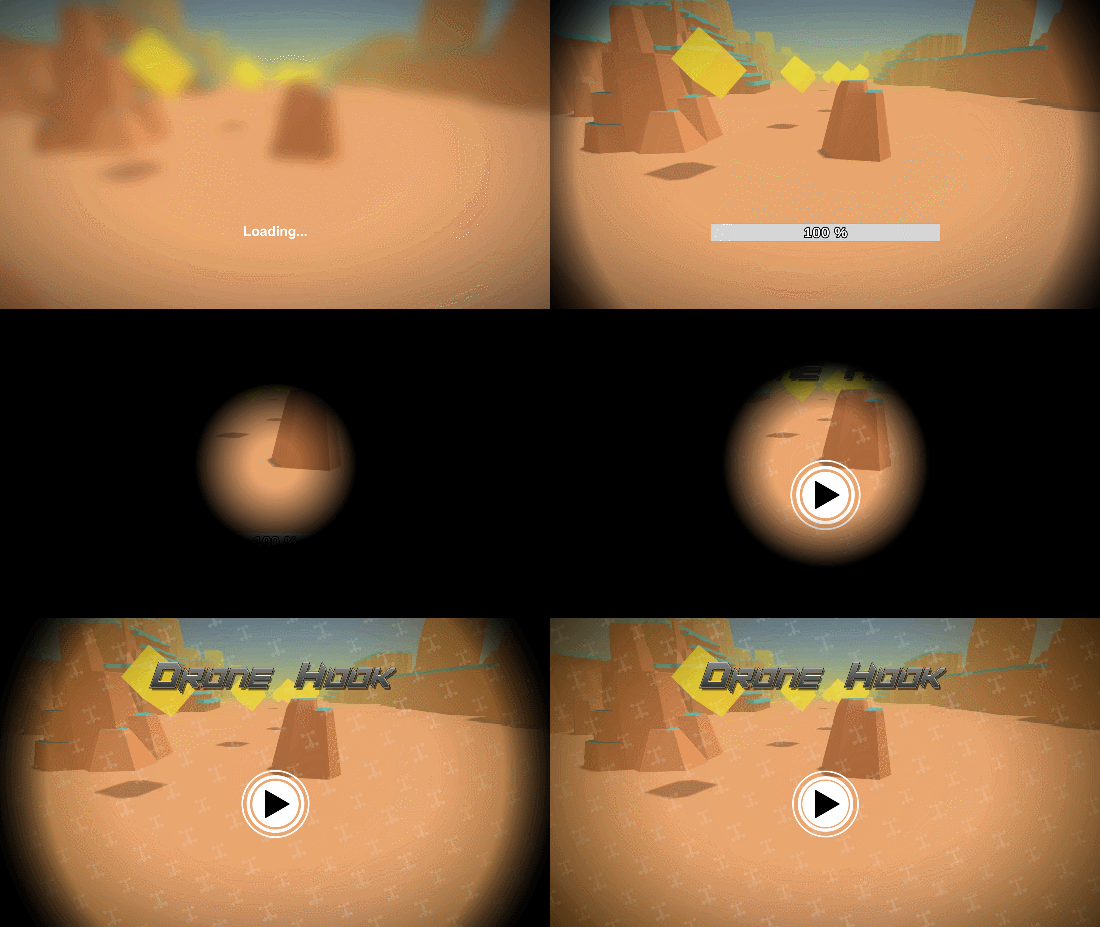
Install via UPM
Add to Unity Package Manager using this URL
https://www.pkglnk.dev/transition.git README Markdown
Copy this to your project's README.md

## Installation
Add **FRP Transition prefabs** to your Unity project via Package Manager:
1. Open **Window > Package Manager**
2. Click **+** > **Add package from git URL**
3. Enter:
```
https://www.pkglnk.dev/transition.git
```
[](https://www.pkglnk.dev/pkg/transition)Dependencies (3)
Used By (1)
README

Transition
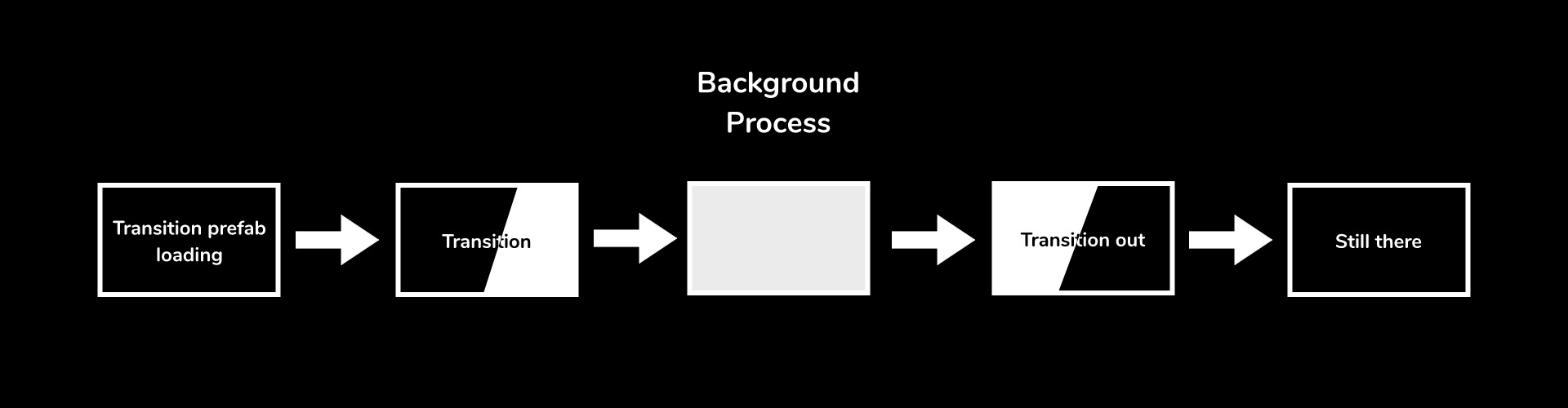
Between scenes, to hide loading time or simply make a smooth transition, you have to show a transition screen. Those prefabs allow you to call the transition to be shown or hidden.
Subscribe to its events (TransitionShown and TransitionHidden) to know when you can load something behind the players back.
Requires the EventHandler and Singleton.
Description
There are two types of transition:
- Doors : use two images that hide the screen by scrolling from the left and right borders of the screen,
- CutOff : use a gradient image to show/hide a texture fullscreen, you can create a transition like Animal Crossing with this one.
Usage
- Place chosen prefab in scene
- Call Transition.Show()
- Do whatever you want behind the player's back
- Call Transition.Hide()
Optionnal: subscribe to the game events to trigger at the right time what you want to do.
Demo
A demo is present under the Sample folder.
- Load the scene
- Click the Play button
- In the editor, use the [S] key to show the transition, and the [H] key to hide it.
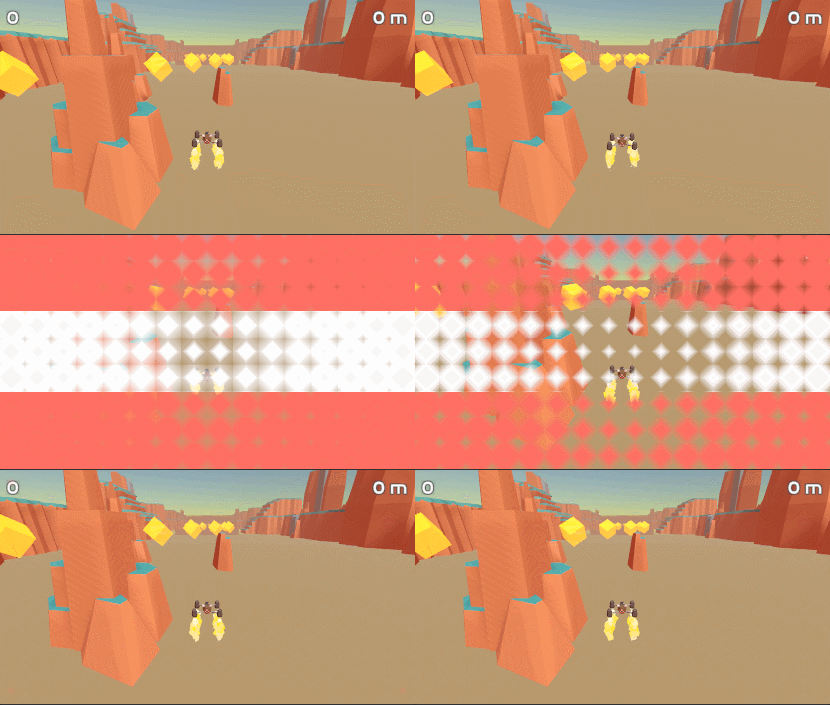
Combining this to the EasyLoading asset, here is what you can get:
No comments yet. Be the first!