Project Window Extensions

This aims to improve the usability of the project window.
com.nomnom.project-window-extensions Unity Compatibility
Unity 6 Supported
2023.2 Supported
2023.1 Supported
2022.3 LTS Supported
2021.3 LTS Supported
2020.3 LTS Not tested
2019.4 LTS Not tested
Install via UPM
Add to Unity Package Manager using this URL
https://www.pkglnk.dev/project-window-extensions.git 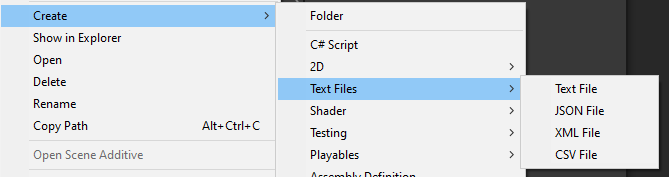
README Markdown
Copy this to your project's README.md
Style
Preview 
## Installation
Add **Project Window Extensions** to your Unity project via Package Manager:
1. Open **Window > Package Manager**
2. Click **+** > **Add package from git URL**
3. Enter:
```
https://www.pkglnk.dev/project-window-extensions.git
```
[](https://www.pkglnk.dev/pkg/project-window-extensions)Dependencies (1)
README
Project Window Extensions
This aims to improve the usability of the project window.
Installation
- OpenUPM
openupm add com.nomnom.project-window-extensions
- Package Manager
- Add through git url
https://github.com/nomnomab/Project-Window-Extensions.git
- Add through git url
Package Settings
- Parts of this package can be enabled/disabled via the preferences menu, located in
Edit/Preferences/Project Window Extensions
Current Enhancements
Copy/Paste/Cut Support
Allows for copying, pasting, and cutting assets directly in the editor
Works for folders and assets.
Default keybinds
- These keybinds will need to be rebound via the
Shortcut Managerdue to it conflicting with Unity's native keybinds
Action Keybind Copy Ctrl-C Paste Ctrl-V Cut Ctrl-X Copy - Cancel Ctrl-Shift-C Cut - Cancel Ctrl-Shift-X - These keybinds will need to be rebound via the
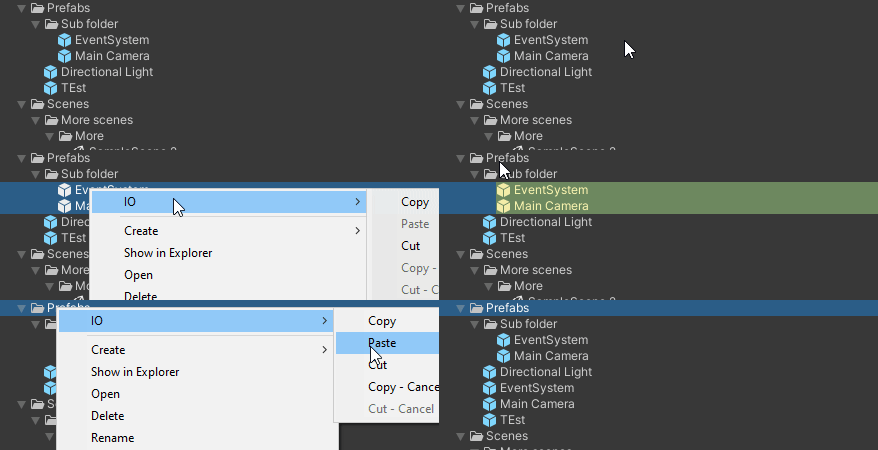
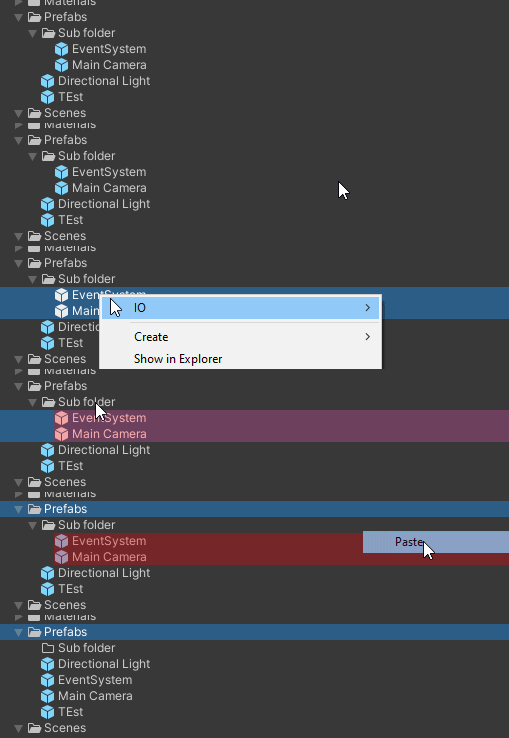
Gives a visual when in either copy or cut mode
Works in both single and double column mode
Can be found under
IO/*
Copy Mode
Cut Mode
Additional Create Options
- Added types:
- Text File
- JSON File
- XML File
- CSV File
- Can be found under
Create/Text Files/*
Comments
No comments yet. Be the first!
Sign in to join the conversation
Sign In