Yandex Games
Fork
Integrate your Unity WebGL games with Yandex Games services. YandexGamesSDK-Unity provides seamless access to authentication, leaderboards, advertisements, and cloud storage through a robust, well-documented SDK. Requires Unity 2020.3+ and WebGL build target.
com.yandexgames.unity Install via UPM
Add to Unity Package Manager using this URL
https://www.pkglnk.dev/am1goo-unity.git 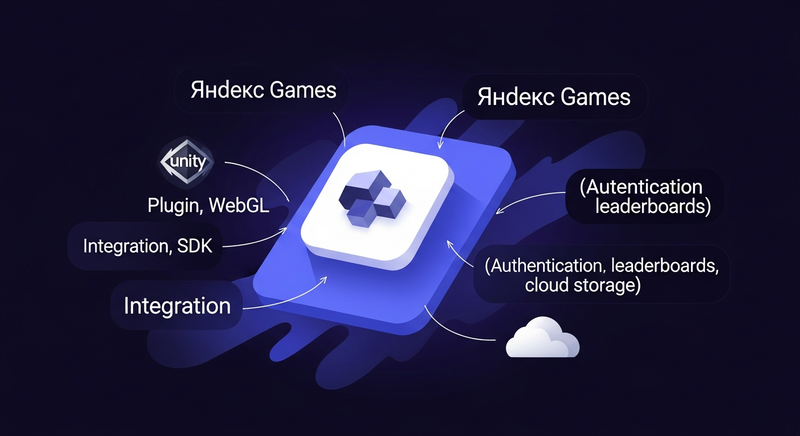
README Markdown
Copy this to your project's README.md

## Installation
Add **Yandex Games** to your Unity project via Package Manager:
1. Open **Window > Package Manager**
2. Click **+** > **Add package from git URL**
3. Enter:
```
https://www.pkglnk.dev/am1goo-unity.git
```
[](https://www.pkglnk.dev/pkg/am1goo-unity)Dependencies (1)
README
YandexGamesSDK-Unity

Documentation
For detailed documentation, tutorials, and integration guides, please visit our documentation website.
Overview
YandexGamesSDK-Unity is an advanced integration package that connects Unity WebGL projects with Yandex Games services. This repository contains the core SDK implementation and is intended for developers who want to contribute to the project or understand its technical details.
Technical Requirements
- Unity Version: 2020.3 or higher
- Build Target: WebGL only
- Node.js and npm (for local server setup)
Repository Structure
Assets/
├── Plugins/
│   └── YandexGamesSDK/
│       ├── Runtime/         # Core SDK implementation
│       ├── Editor/          # Unity editor extensions
│       └── LocalServer/     # Development server utilities
Development Setup
Clone the repository:
git clone https://github.com/playables-studio/YandexGamesSDK-Unity.gitOpen the project in Unity 2020.3 or higher
Install Node.js dependencies for local development server:
cd ./apiProvider
npm install
Contributing
- Fork the repository
- Create a feature branch (
git checkout -b feature/amazing-feature) - Commit your changes (
git commit -m 'Add amazing feature') - Push to the branch (
git push origin feature/amazing-feature) - Open a Pull Request
Coding Standards
- Follow Unity's C# coding conventions
- Maintain XML documentation for public APIs
- Include unit tests for new features
- Update relevant documentation when making changes
Building from Source
- Open the project in Unity
- Set build target to WebGL
- Build the project using Unity's standard build process
Testing
- Unit tests are located in the
Testsfolder - Run tests through Unity Test Runner
- Use the LocalServerManager for integration testing
License
YandexGamesSDK-Unity is distributed under the MIT License. See the LICENSE file for more information.
Support
- For SDK usage questions, refer to our documentation
- For bugs and feature requests, open an issue
- For contribution questions, start a discussion
Core Modules Reference
For developers working with the source code:
AuthModule
Handles user authentication and session management.
LeaderboardModule
Manages leaderboard submissions and retrievals.
AdvertisementModule
Controls advertisement display and lifecycle events.
StorageModule
Handles cloud and local storage operations.
Troubleshooting Development Issues
- Package Not Found: Verify submodules are initialized
- Node.js/npm Not Found: Check system PATH configuration
- Server Not Starting: Check port availability and permissions
- Build Errors: Ensure Unity version compatibility
Comments
No comments yet. Be the first!
Sign in to join the conversation
Sign In