ZBase.Foundation.Data

A tool to export ScriptableObject database from either Google Spreadsheet or CSV by utilising cathei/BakingSheet and C# Source Generator.
Unity Project
Built with Unity 2022.3.39f1 · download the source from GitHub
Dependencies (42)
README
ZBase.Foundation.Data
A code-first data management workflow for C# and Unity, powered by BakingSheet and Source Generators.
Features
- Clear separation between runtime data models and authoring data sources.
- Authoring code, data sources and configuration will NOT be included in the build.
- Data sources can be Google Sheets or CSV files (powered by BakingSheet).
- Support for complex data types (powered by BakingSheet).
- There are only a few Limitations.
- Automatic mapping between data sources and data models (powered by Source Generators).
- Code-first approach with minimal configuration on Unity Inspector.
- Flexible and automatic data type conversion mechanism.
Installation
Requirements
- Unity 2022.3 or later
Unity Package Manager
Open menu
Window->Package Manager.Click the
+button at the top-left corner, then chooseAdd package from git URL....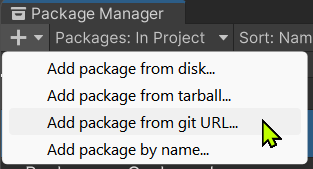
Enter the package URL
https://github.com/Zitga-Tech/ZBase.Foundation.Data/tree/main/Packages/ZBase.Foundation.Data.

OpenUPM
- Install OpenUPM CLI.
- Run the following command in your Unity project root directory:
openupm add com.zbase.foundation.data
General Workflow
At high level, the usage workflow usually consists of the following steps:
- Data Authoring: Create data sources in Google Sheets or CSV files.
- Data Modeling: Design
IDatamodels in C# code along with the table assets to store them. - Data Importing: Leverage BakingSheet to import authored data from step 1 into each corresponding table asset. This step requires a piece of bridging code and a config asset.
Tutorial
For this tutorial:
- Data sources are defined in Google Sheets
- Data models and table assets located at Assets/Samples
- Data importing configs located at Assets/Samples.Authoring
Step 1. Data Authoring
1.1. Create Data Sources
Data sources can be either Google Sheets or CSV files.
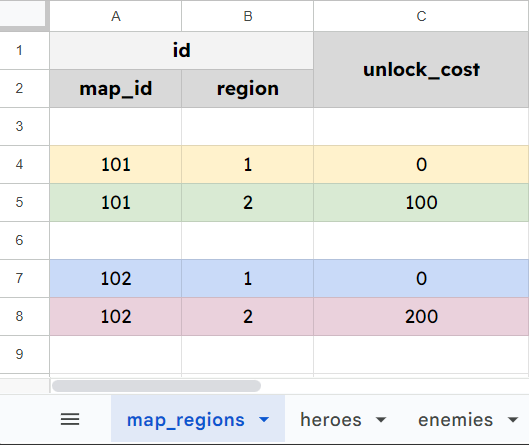
Figure 1: map_regions table
1.2. Use a Consistent Naming Strategy
You must choose one of these strategies and apply it consistently for all sheets, columns, and CSV files.
| Pascal | Camel | Snake | Kebab |
|---|---|---|---|
SheetName |
sheetName |
sheet_name |
sheet-name |
ColumnName |
columnName |
column_name |
column-name |
FileName.csv |
fileName.csv |
file_name.csv |
file-name.csv |
Step 2. Data Modeling
2.1. Define Data Models
- Define a data model, can be
structorclass, and must implementIDatainterface. - Any field that should be mapped to a column in the data source must be decorated with
[SerializeField].- A public property will be generated for such valid fields.
- In case you prefer writing properties, each should be decorated with
[DataProperty].- The underlying field and methods will be generated for such valid properties.
- The data model must be
partialso that source generators can generate the underlying implementation. - Fields or properties are matched to columns in the data source by name, after applying the naming strategy.
- The ID of a data model can be a complex structure, consists of multiple fields.
- These field named
_idoridor the property namedIdwill be recognized as the ID of that model.
- These field named
Listing 1: Model for the ID of a map region entry
public partial struct MapRegionIdData : IData
{
    [SerializeField]
    private int _mapId;

    [SerializeField]
    private int _region;

    // IData source generator will generate
    // a property for each field.
    // ===

    // public int MapId { get => _mapId; init => _mapId = value; }

    // public int Region { get => _region; init => _region = value; }
}
Listing 2: Model for the map region entry
public partial class MapRegionData : IData
{
    [DataProperty]
    public MapRegionIdData Id => Get_Id();

    [DataProperty]
    public int UnlockCost => Get_UnlockCost();

    // IData source generator will generate
    // a field and a `Get_XXX()` method for each property.
    // ===

    // [SerializeField]
    // private MapRegionIdData _id;

    // private readonly MapRegionIdData Get_Id() => _id;

    // [SerializeField]
    // private int _unlockCost;

    // private readonly int Get_UnlockCost() => _unlockCost;
}
2.2. Define Data Table Assets
- Each data table asset type should inherit from either
DataTableAsset<TEntryId, TEntry>orDataTableAsset<TEntryId, TEntry, TConvertedId>.TEntryIdis the type of theIdproperty ofTEntry.TEntryis the data model, corresponding to a row in the data source.TConvertedIdis the type of theIdproperty ofTEntryafter being converted fromTEntryId.
- It is required to implement
IDataTableAssetinterface so source generator can generate additional but necessary code. - Ultimately this is a
ScriptableObjectto store the imported data.
Listing 3: Data table asset for map region
public sealed partial class MapRegionDataTableAsset
    : DataTableAsset<MapRegionIdData, MapRegionData, MapRegionId>
    , IDataTableAsset
{
    protected override MapRegionId Convert(MapRegionIdData value)
        => value;

    // IDataTableAsset source generator will generate
    // a constant field `NAME` and a `GetId()` method.
    // ===

    // public const string NAME = nameof(MapRegionDataTableAsset);

    // protected override MapRegionIdData GetId(in MapRegionData data)
    // {
    //     return data.Id;
    // }
}
Step 3. Data Importing
3.1. Declare a Bridge to BakingSheet
- Define a partial class of any name.
- Decorate the class with
[Database]attribute. - Can specify a global naming strategy for all tables.
- Decorate the class with
- Inside the class, define a property for each table asset. Each will be mapped to a sheet in the data source.
- Decorate the property with
[Table]attribute.
- Decorate the property with
- In case a column in the data source should be a vertical list, decorate the property with
[VerticalList]attribute.- First parameter of the attribute is the type of the data model, which can be a part of the table, not necessary the main data model.
- Second parameter is the name of the property that should be treated as a vertical list.
Listing 4: A bridge to map each table to its source sheet
[Database(NamingStrategy.SnakeCase)]
public partial class DatabaseDefinition
{
    [Table] public MapRegionDataTableAsset MapRegions { get; }

    [VerticalList(typeof(HeroData), nameof(HeroData.Multipliers))]
    [Table] public HeroDataTableAsset Heroes { get; }
}
After defining the bridge, BakingSheet related code will be generated so that data importing can function.
3.2. Import From Data Source
There are 2 ways to implement this functionality:
- Create an asset for
DatabaseCsvSheetConfigand use its Inspector functionality (Appendix A). - Write a function to import the data source (Appendix B).
Appendices
Appendix A. Import data via a configuration asset
A.1. CSV
Define a class that inherits from
DatabaseCsvSheetConfig.[CreateAssetMenu( fileName = nameof(SampleDatabaseCsvSheetConfig) , menuName = "Sample Database Csv Sheet Config" , order = 0 )] public partial class SampleDatabaseCsvSheetConfig : DatabaseCsvSheetConfig<DatabaseDefinition.SheetContainer> // ^^^^^^^^^^^^^^^^^^ // Replace this with your class defined at step 3.1. { protected override DatabaseDefinition.SheetContainer CreateSheetContainer() { return new DatabaseDefinition.SheetContainer(UnityLogger.Default); // ^^^^^^^^^^^^^^^^^^ // Replace this with your class defined at step 3.1. } protected override string GetDatabaseAssetName() { // Any name of your choice. return "SampleDatabaseAsset"; } }In the Project window, create an asset out of it.
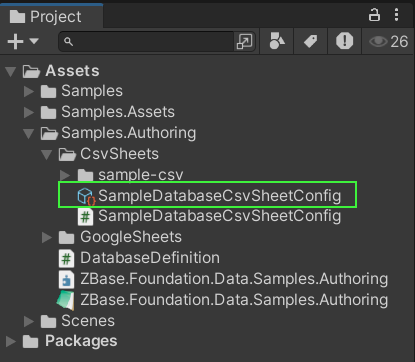
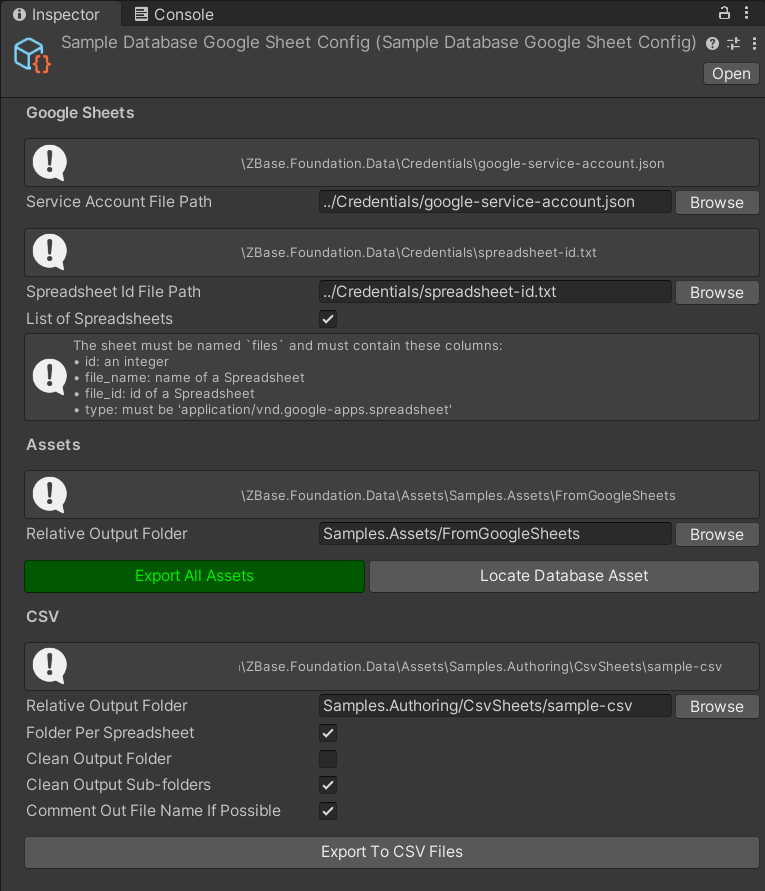
Fill in the fields in the Inspector. Then click the
Export All Assetsbutton.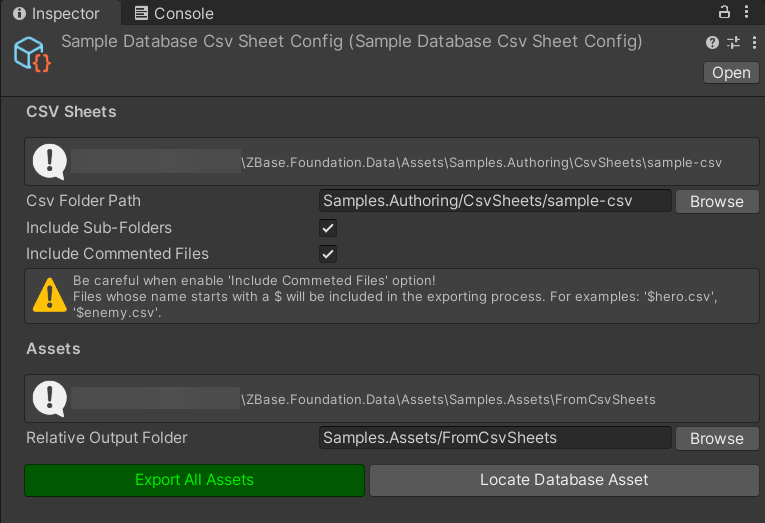
A.2. Google Sheets
Define a class that inherits from
DatabaseGoogleSheetConfig.[CreateAssetMenu( fileName = nameof(SampleDatabaseGoogleSheetConfig) , menuName = "Sample Database Google Sheet Config" , order = 0 )] public partial class SampleDatabaseGoogleSheetConfig : DatabaseGoogleSheetConfig<DatabaseDefinition.SheetContainer> // ^^^^^^^^^^^^^^^^^^ // Replace this with your class defined at step 3.1. { protected override DatabaseDefinition.SheetContainer CreateSheetContainer() { return new DatabaseDefinition.SheetContainer(UnityLogger.Default); // ^^^^^^^^^^^^^^^^^^ // Replace this with your class defined at step 3.1. } protected override string GetDatabaseAssetName() { // Any name of your choice. return "SampleDatabaseAsset"; } }In the Project window, create an asset out of it.
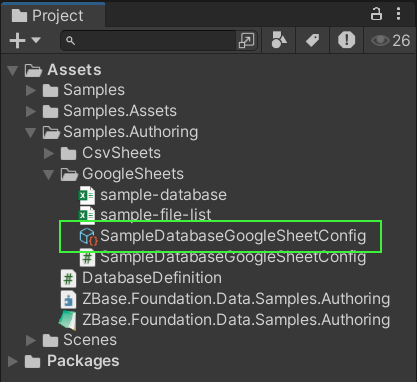
Follow this tutorial to properly configure the Spreadsheet so it can be imported. It also explains how to acquire the ID of a spreadsheet, and the Google Credential JSON.
Fill in the fields in the Inspector. Then click the
Export All Assetsbutton.
Appendix B. Import data via a function
B.1. CSV
using System;
using System.Threading.Tasks;
using Cathei.BakingSheet.Unity;
using UnityEditor;
using ZBase.Foundation.Data.Authoring;

public static partial class DatabaseImporter
{
    public static async Task<bool> FromCsvFilesAsync(
          string csvFolderPath
        , string assetOutputFolderPath
        , bool includeSubFolders = true
        , bool includeCommentedFiles = true
    )
    {
        var converter = new DatabaseCsvSheetConverter(
              csvFolderPath
            , TimeZoneInfo.Utc
            , includeSubFolders: includeSubFolders
            , includeCommentedFiles: includeCommentedFiles
        );

        var sheetContainer = new DatabaseDefinition.SheetContainer(UnityLogger.Default);
        //                       ^^^^^^^^^^^^^^^^^^
        //        Replace this with your class defined at step 3.1.

        var result = await sheetContainer.Bake(converter).ConfigureAwait(true);

        if (result == false)
        {
            return false;
        }

        var exporter = new DatabaseAssetExporter<DatabaseAsset>(
              assetOutputFolderPath
            , nameof(DatabaseAsset)
        );

        result = await sheetContainer.Store(exporter).ConfigureAwait(true);

        if (result == false)
        {
            return false;
        }

        AssetDatabase.Refresh();
        return true;
    }
}
B.2. Google Sheets
Note: Follow this tutorial to properly configure the Spreadsheet so it can be imported. It also explains how to acquire the ID of a spreadsheet, and the Google Credential JSON.
using System;
using System.IO;
using System.Threading.Tasks;
using Cathei.BakingSheet.Unity;
using UnityEditor;
using ZBase.Foundation.Data.Authoring;

public static partial class DatabaseImporter
{
    public static async Task<bool> FromGoogleSheetsAsync(
          string spreadsheetId
        , string googleCredentialJson
        , string assetOutputFolderPath
    )
    {
        var converter = new DatabaseGoogleSheetConverter(
              spreadsheetId
            , googleCredentialJson
            , TimeZoneInfo.Utc
        );

        var sheetContainer = new DatabaseDefinition.SheetContainer(UnityLogger.Default);
        //                       ^^^^^^^^^^^^^^^^^^
        //        Replace this with your class defined at step 3.1.

        var result = await sheetContainer.Bake(converter).ConfigureAwait(true);

        if (result == false)
        {
            return false;
        }

        var exporter = new DatabaseAssetExporter<DatabaseAsset>(
              assetOutputFolderPath
            , nameof(DatabaseAsset)
        );

        result = await sheetContainer.Store(exporter).ConfigureAwait(true);

        if (result == false)
        {
            return false;
        }

        AssetDatabase.Refresh();
        return true;
    }
}
B.3. Excel
[WIP]
Limitations
- Nested vertical list is not supported.
- Cross-Sheet Reference is not supported.
Comments
No comments yet. Be the first!
Sign in to join the conversation
Sign In