Install via UPM
Add to Unity Package Manager using this URL
https://www.pkglnk.dev/track/uniprefabbinder.git?path=Assets/UniPrefabBinder/Main README
UniPrefabBinder


Library for fast prefab binding. Nice architectural solution through attributes. Easily use binding attributes in your own component descriptions to describe the behavior of prefabs on the scene.
Attributes used:
[ComponentBinding]- for component binding[ObjectBinding]- for GameObject binding[PrefabPath]- to describe the path to your prefab, go to theResourcesfolder (with the standard loader), or you can write your own loader by implementing the interface(s)IResourceLoader,IResourceLoaderByTaskand declare itPrefabBinder.LoaderSet.Add(...)
Implementing your own loader may be necessary if your resources and prefabs are loaded, for example, via Addressables:
public class CustomLoader : IResourceLoader, IResourceLoaderByTask
{
    public async UniTask<T> LoadAddressableAsync<T>(string path) where T : Object
    {
        ...
        return result as T;
    }

    public T LoadAddressable<T>(string path) where T : Object
    {
        ...
        return result as T;
    }

    // implement IResourceLoader
    public T Load<T>(string path) where T : Object => LoadAddressable<T>(path);

    // implement IResourceLoaderByTask
    public async Task<T> LoadAsync<T>(string path) where T : Object => await LoadAddressableAsync<T>(path).AsTask();
}
Further declaration of the loader in your project should go as follows:
var loader = new CustomLoader();
PrefabBinder.LoaderSet.Add((IResourceLoader) loader)
                      .Add((IResourceLoaderByTask) loader);
The binding fields of your prefab will already be available the first time the Awake() method is executed:
[PrefabPath("UniPrefabBinder/ExamplePrefab")]
public class ExamplePrefabController : MonoBehaviour
{
    [ComponentBinding("Text")]
    private TextMesh _text = null!;

    [ComponentBinding("Sphere")]
    private MeshRenderer _sphereMat = null!;

    [ComponentBinding]
    private MeshRenderer _quad = null!;

    [ObjectBinding("Sphere")]
    private GameObject _sphere = null!;

    [ObjectBinding("ExamplePrefabText")]
    private GameObject _pfText = null!;

    private float _time;

    private void Awake()
    {
        _text.text = "Binded";
        _quad.enabled = false;
    }

    private void Update()
    {
        _time += Time.deltaTime;
        if (_time >= 1) {
            _sphere.SetActive(!_sphere.activeSelf);
            _pfText.SetActive(!_pfText.activeSelf);
            _sphereMat.material.color = Color.red;
            _time = 0;
        }
    }
}
The attribute's brackets indicate the object's name in the prefab hierarchy. If you want to get a component on the root object of the prefab itself, then simply write the attribute's name without brackets, as you can see in the example above.
If you have objects inside your prefab with other components implemented (which also have binding attributes), they will be automatically bound regardless of whether you access them by attributes or not. This recursive binding gives more freedom in implementing complex components for UI and other objects.
Use the Instantiate method of PrefabBinder to get the bound component (prefab) into your scene:
public class ExampleForScene : MonoBehaviour
{
    private void Start()
    {
        Bind();
    }

    private void Bind()
    {
        ExamplePrefabController prefab = PrefabBinder.Instantiate<ExamplePrefabController>(transform);
        Debug.Log($"Binded prefab name={prefab.name}");
    }

    private async Task BindAsync()
    {
        ExamplePrefabController prefab = await PrefabBinder.InstantiateAsync<ExamplePrefabController>(transform);
        Debug.Log($"Binded (async) prefab name={prefab.name}");
    }
}
If you loaded a prefab resource with a custom loader, you can use the TryBind<T> extended method on it to get the same binding T component of your prefab.
Install via git URL
Requires a version of unity that supports path query parameter for git packages (Unity >= 2019.3.4f1, Unity >= 2020.1a21). You can add https://github.com/MrClaus/UniPrefabBinder.git?path=Assets/UniPrefabBinder/Main to Package Manager
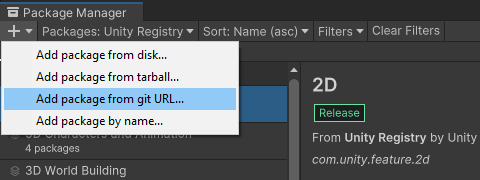
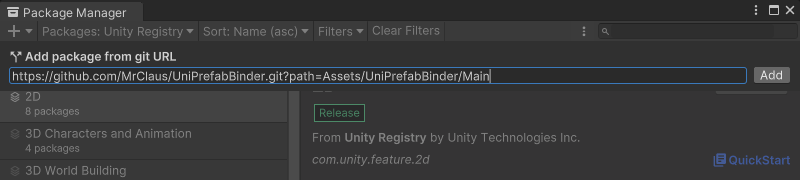
or add "com.github.mrclaus.uniprefabbinder": "https://github.com/MrClaus/UniPrefabBinder.git?path=Assets/UniPrefabBinder/Main" to Packages/manifest.json.
If you want to set a target version, UniPrefabBinder uses the *.*.* release tag so you can specify a version like #1.1.1. For example https://github.com/MrClaus/UniPrefabBinder.git?path=Assets/UniPrefabBinder/Main#1.1.1.
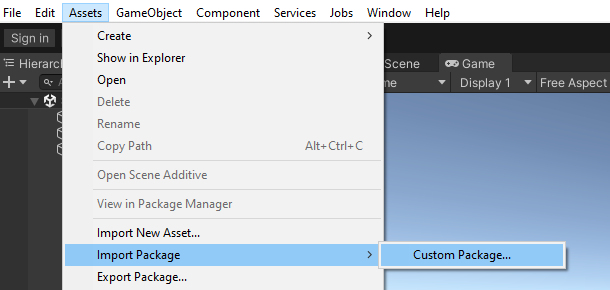
Install via Unity package file (.unitypackage)
The Unity package files will also contain examples of how to use the library. The package files (.unitypackage) for each version can be found in the Releases section
Install via OpenUPM
Add a new OpenUPM registry to the Package Manager, and specify the package name with the desired version in manifest.json. Package page on the OpenUPM website: UniPrefabBinder
{
  "dependencies": {
    ...
    "com.github.mrclaus.uniprefabbinder": "1.1.1"
  },
  "scopedRegistries": [
    {
      "name": "package.openupm.com",
      "url": "https://package.openupm.com",
      "scopes": [
        ...
        "com.github.mrclaus.uniprefabbinder"
      ]
    }
  ]
}
License
This library is under the MIT License.
Installs Over Time
Operating Systems
No data yet
Top Countries
No data yet
Git Versions
No data yet
Embed Install Badge
Add an install count badge to your README

[](https://www.pkglnk.dev/pkg/uniprefabbinder)<a href="https://www.pkglnk.dev/pkg/uniprefabbinder"><img src="https://www.pkglnk.dev/badge/uniprefabbinder.svg?style=pkglnk" alt="pkglnk installs"></a>
No comments yet. Be the first!