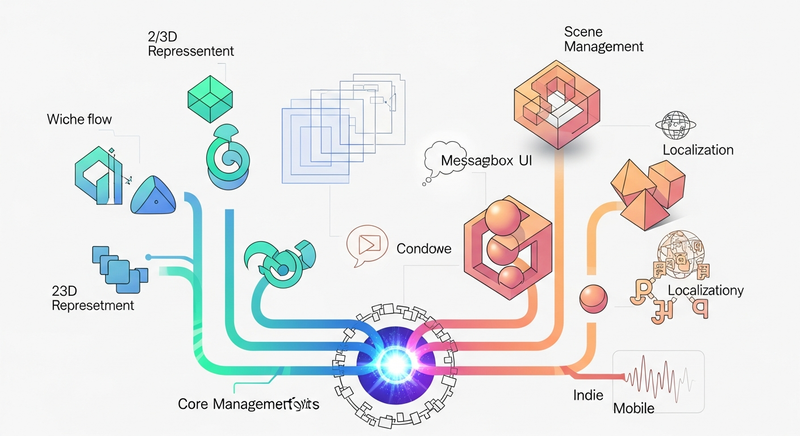

A reusable Unity framework for 2D and 3D games with scene, window, messagebox, localization, and audio management.
Add to Unity Package Manager
Paste this URL into Unity's Window › Package Manager › + › Add package from git URL,
or click Install.
https://www.pkglnk.dev/titusz1928-framework.git README
Rendered from GitHub

TitusGames Framework
A reusable Unity framework for 2D and 3D games, providing ready-made systems for Booting, Scene Management, Windows/UI, Localization, Audio, and in-game messages/notifications.
The framework is designed to help you rapidly build consistent projects without rewriting core systems every time.
⚙ Installation & Setup
1. Install via UPM
Open Unity and go to Window > Package Manager.
Click the + button and select Add package from git URL...
Paste your repository URL: https://github.com/Titusz1928/TitusGames-Framework.git
2. Import the Framework
- In the Package Manager, select TitusGames Framework.
- Find the Samples section. You will see two options:
- 2D Starter Framework: Optimized for 2D projects (Orthographic cameras, 2D lighting).
- 3D Starter Framework: Optimized for 3D projects (Perspective cameras, Skybox, 3D lighting).
- Click Import next to your preferred version.
3. Basic Configuration
Move the Folder: You are free to move the FullFramework folder anywhere in your Assets directory (e.g., to Assets/_Framework).
Build Settings: Remember to go to File > Build Settings and add your scenes to the Scenes in Build list.
Boot Scene: Always start your game from the scene containing the Boot manager to ensure all systems initialize correctly.
🚀 Features
- BootManager – initializes all other managers automatically; no need to manually place managers in new scenes.
- 2D & 3D Support – Includes pre-configured sample scenes for both dimensions.
- Sandbox Mode – A dedicated testing environment that mirrors the Boot sequence for isolated development.
- SceneManager – easily navigate between scenes and exit the game.
- WindowManager – create UI windows and open them from buttons.
- LocalizationManager – localize any TextMeshPro UI element with JSON files.
- AudioManager – play SFX and music stored inside the framework’s audio folder.
- MessageManager – make messages appear.
🧪 Sandbox & Team Workflow
The newest update introduces the Sandbox Scene. This is designed specifically for collaborative environments where multiple people are working on different features simultaneously.
Why use the Sandbox?
In a team, editing the "Main" or "Boot" scene frequently leads to Git merge conflicts. The Sandbox allows you to:
- Isolated Testing: Create your own "Test" scene to build a specific mechanic without touching the production flow.
- Full System Access: The Sandbox automatically loads the Audio, Window, Localization, and Scene managers, just like the real Boot scene.
- Zero Setup: Simply open the Sandbox scene and start dragging your new prefabs or scripts in; the framework backbone is already initialized and running.
[!TIP] Best Practice: Keep the
Bootscene reserved for the final game flow and useSandbox(or duplicates of it) for daily development, prototyping, and isolated feature testing.
📂 Project Structure
_Framework/
│
├── Managers/
│ ├── Boot.cs
│ ├── SceneManager.cs
│ ├── WindowManager.cs
│ ├── LocalizationManager.cs
│ └── AudioManager.cs
│ └── MessageManager.cs
│
├── UI/
│ └── Windows/
│ └── (Your Window Scripts + Prefabs)
│
├── Resources/
│ ├── Audio/
│ │ └── (Place your .wav / .mp3 files here)
│ └── Languages/
│ └── (JSON files for each language)
│
├── Scenes/
│ └── TestingScenes/
│ │ └── Sandbox.unity
│ ├── Boot.unity
│ ├── MainMenu.unity
│ ├── Game.unity
│
└── ThirdParty/
└── Utils/
└── MiniJSON (for localization)
🎮 SceneManager
The SceneManager lets you load scenes by name and exit the game. Every new scene that you create should have a canvas which needs a WindowRoot and a MessageContainer gameobject.
✔ Load a Scene
SceneManager.Instance.LoadScene("GameScene");
✔ Exit the Game
SceneManager.Instance.ExitGame();
✔ Add a Button That Loads a Scene
Add a Unity Button to the UI.
Add the UI_SceneButton script to it.
Enter the scene name into the Scene Name field.
Add an OnClick() event.
Drag the script into the event.
Select:
SceneManager → LoadScene()
🪟 WindowManager
Windows are UI panels (prefabs) that you can open and close dynamically.
✔ How to Create a New Window
Create a new UI panel.
You can start by duplicating or modifying the WindowBase prefab.
Customize it however you like.
✔ Add a Button That Opens a Window
Add a Button.
Add the UI_OpenWindow script.
Drag your window prefab into its field.
Add an OnClick() event.
Drag the UI_OpenWindow script into the event.
Select:
WindowManager → Open()
🌍 LocalizationManager
Add localization to any text using simple JSON files.
Example JSON (eng.json)
{
  "play_button": "Play",
  "settings_button": "Settings",
  "exit_button": "Exit"
}
✔ How to Localize a Text Element
Add the LocalizedText component to a TextMeshPro UI object.
Enter the Key from your JSON file (example: "play_button").
The text will automatically update based on the selected language.
✔ Add or Edit Localization
Open the JSON files in:
_Framework/Resources/Languages
Add or modify your keys.
Save — the manager automatically reloads them at runtime.
🔊 AudioManager
Plays audio clips by name using files stored inside:
_Framework/Resources/Audio/
The AudioManager is generic. You don't need to modify the script to add new sounds; it automatically finds any audio file placed in the correct Resources folder using the filename as a key.
[!WARNING] Manual File Placement Required: By default, the framework is empty. You must add your audio files for the manager to work.
✔ Folder Structure
Place your files in these exact paths inside your Resources folder:
Resources/Audio/Music/ (for .mp3, .wav, .ogg music loops)
Resources/Audio/SFX/ (for sound effects)
✔ Playing Music (The Easy Way)
The framework includes a MusicTrigger script so you can set up music without writing code:
Create an Empty GameObject in your scene.
Attach the MusicTrigger script.
Type the Filename (without extension) in the Track Name field.
(Optional) Check Stop On Scene Exit if you want the music to silence when leaving this scene.
✔ Playing Music (Via Code)
Music automatically handles cross-fading when switching tracks.
// Plays "MainMenuTheme.mp3" located in Resources/Audio/Music
AudioManager.Instance.PlayMusic("MainMenuTheme");
✔ Playing Sound Effects (SFX)
// Plays "click.wav" located in Resources/Audio/SFX
AudioManager.Instance.PlaySFX("click");
// Play with a specific volume multiplier (e.g., 50% volume)
AudioManager.Instance.PlaySFX("explosion", 0.5f);
✔ Volume & Settings
AudioManager.Instance.SetMusicVolume(0.7f); // Sets music to 70%
AudioManager.Instance.ToggleSFX(false);      // Mutes all sound effects
💬 MessageManager
The role of this manager is to visualize messages from the game/system to the user. For example: "Game saved", "... not available", etc.
Code example
The first parameter is the key for a localized text, this key will be replaced by the corresponding value from the localization .json files. The second value is the sprite that the message box will use.
Sprite infoIcon = Resources.Load<Sprite>("UI/Icons/info2");
MessageManager.Instance.ShowMessage("testmessage", infoIcon);
🧪 Example Workflow
To create a simple menu:
A Play button → loads the game scene using SceneManager.
A Settings button → opens a UI window through WindowManager.
All button text → localized via JSON keys.
Button click sounds → played using AudioManager.
📘 License
MIT License — free for personal and commercial use.
Versions 0
No versions tracked yet.
Dependencies 1
Changelog 0 releases
No changelog entries yet. Run the admin Changelog & Version Scanner to pull from the repository's CHANGELOG.md.
README Markdown
Copy this to your project's README.md

## Installation
Add **TitusGames Framework** to your Unity project via Package Manager:
1. Open **Window > Package Manager**
2. Click **+** > **Add package from git URL**
3. Enter:
```
https://www.pkglnk.dev/titusz1928-framework.git
```
[](https://www.pkglnk.dev/pkg/titusz1928-framework)Embed badge README snippet
[](https://www.pkglnk.dev/pkg/titusz1928-framework)<a href="https://www.pkglnk.dev/pkg/titusz1928-framework"><img src="https://www.pkglnk.dev/badge/titusz1928-framework.svg" alt="pkglnk installs"></a>https://www.pkglnk.dev/badge/titusz1928-framework.svgComments
No comments yet. Be the first!
Sign in to join the conversation
Sign In