SmartDebugger
SmartDebugger is a lightweight in-game debugging tool for Unity that enables developers to inspect system information, modify runtime parameters, view logs, and monitor performance directly on built devices. It provides essential debugging capabilities for mobile and standalone builds without requiring editor connection, featuring runtime value editing, comprehensive log viewing, and device profiling.
com.github.kurobon.smart_debugger 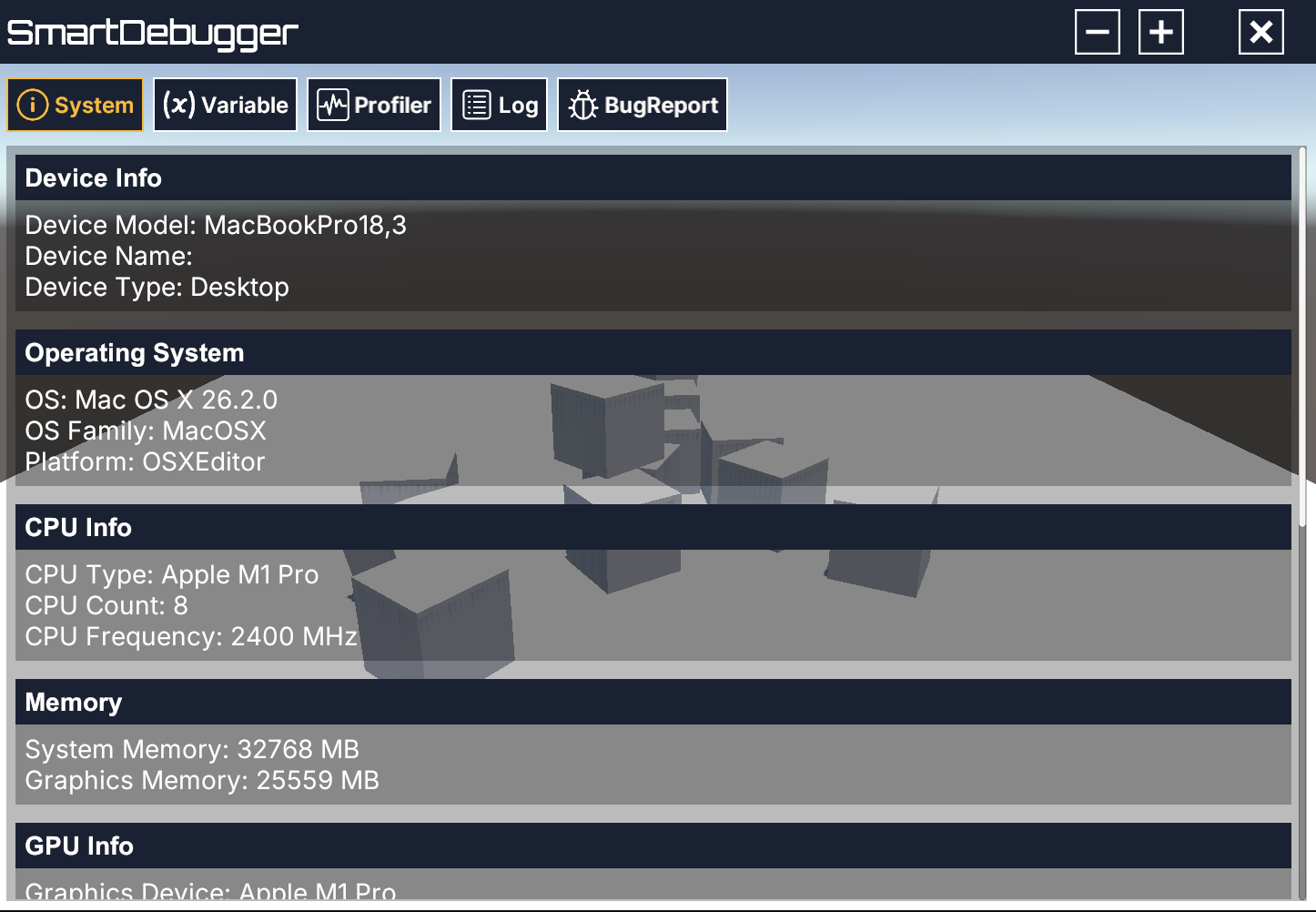
Install via UPM
Add to Unity Package Manager using this URL
https://www.pkglnk.dev/smart-debugger.git?path=Assets README Markdown
Copy this to your project's README.md

## Installation
Add **SmartDebugger** to your Unity project via Package Manager:
1. Open **Window > Package Manager**
2. Click **+** > **Add package from git URL**
3. Enter:
```
https://www.pkglnk.dev/smart-debugger.git?path=Assets
```
[](https://www.pkglnk.dev/pkg/smart-debugger)Dependencies (1)
README
SmartDebugger
SmartDebugger is a lightweight, extensible in-game debugging tool for Unity, primarily designed for mobile platforms.
It allows you to inspect system information, tweak debug values, view logs, monitor basic performance, and collect bug reports directly on real devices after build.
Features
- System Information viewer
- Runtime debug value editing
- In-game log viewer (Unity logs)
- Lightweight profiler
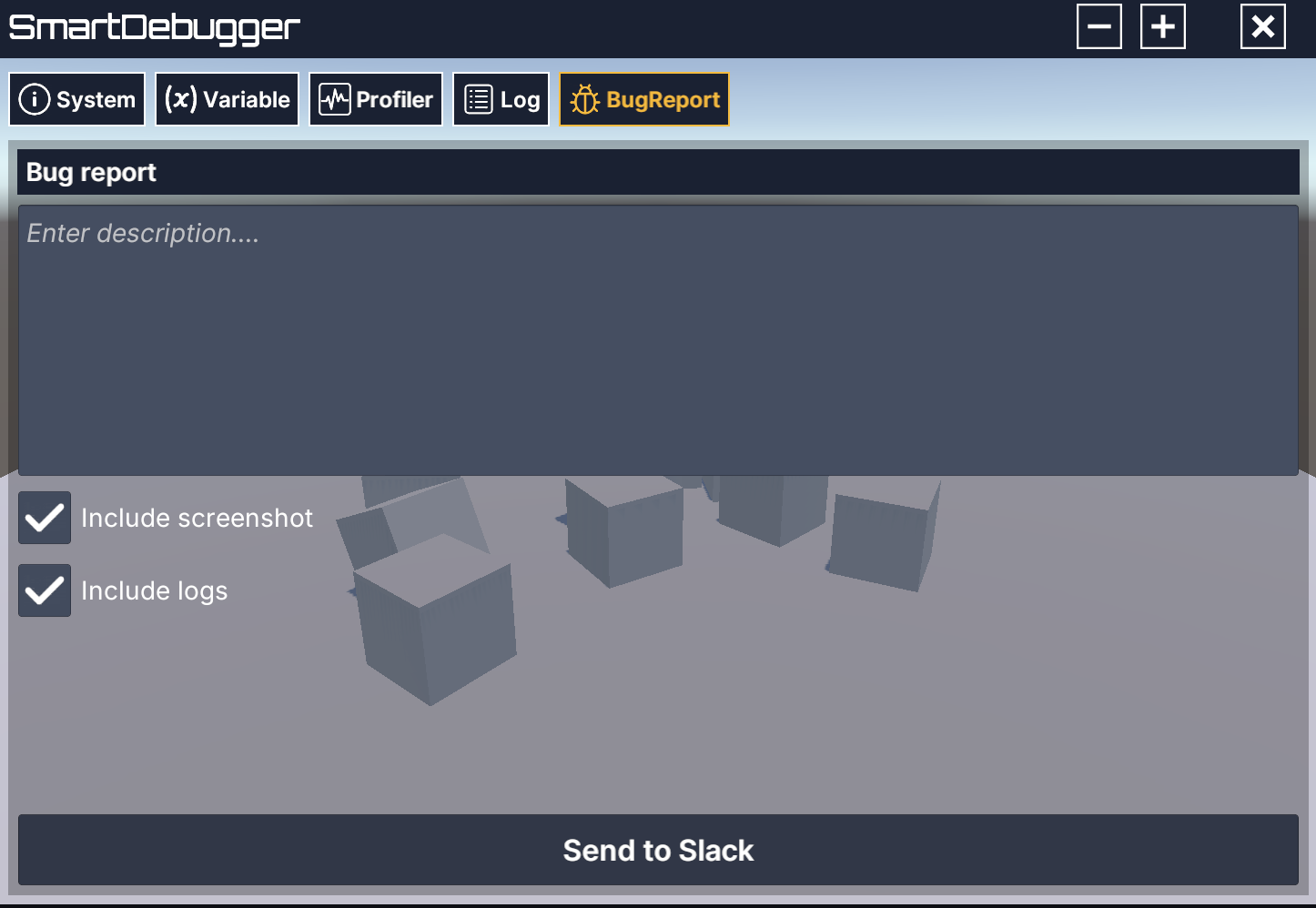
- Bug report collection
1. SystemInfo
Displays detailed runtime and device information.
Example information:
- Unity version
- Platform / OS version
- Device model
- CPU / GPU
- Total system memory
- Screen resolution / DPI
- Graphics API
This is especially useful for collecting device-specific information during testing.
2. Debug Variables (Runtime Parameters)
You can register debug parameters and modify them at runtime without changing code.
Supported types:
| Type | Variable | Field |
|---|---|---|
| bool | BoolVariable | (Checkbox) |
| int | IntVariable | (InputField, Slider) |
| float | FloatVariable | (InputField, Slider) |
| string | TextVariable | (InputField) |
| enum | EnumVariable | (Dropdown) |
| List | SelectionVariable | (Dropdown) |
All values are reflected immediately when changed from the UI.
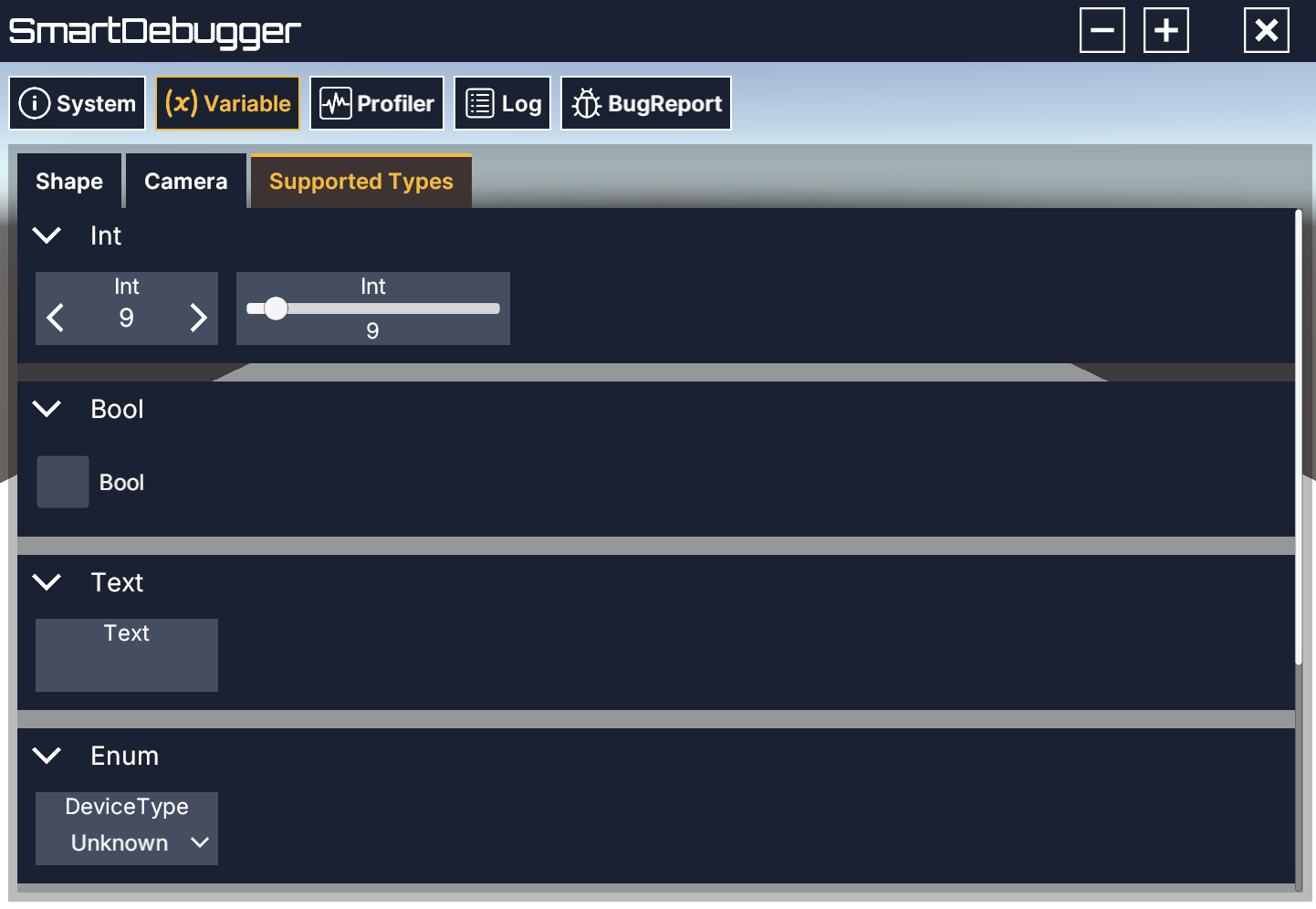
Code Example: Registering Debug Values
using SmartDebugger;
using UnityEngine;

/// <summary>
/// Sample component that registers a custom field layout to SmartDebug.
/// </summary>
public class Example : MonoBehaviour, IFieldLayout
{
    /// <summary>
    /// Title displayed in the Variable Tab.
    /// </summary>
    public string Title => "Example";

    /// <summary>
    /// Integer variable exposed to the debug UI.
    /// </summary>
    private readonly IntVariable _int = new("Int", defaultValue: 50, maxValue: 100, serializeKey: "sd.int");

    private void Start()
    {
        // Register this layout so that SmartDebug can invoke OnLayout
        SmartDebug.Instance.AddFieldLayout(this);
    }

    /// <summary>
    /// Defines the field layout.
    /// </summary>
    /// <param name="groups">Container used to organize debug fields.</param>
    public void OnLayout(FieldGroups groups)
    {
        // Create a group labeled "Int"
        groups.AddGroup("Int", group =>
        {
            // Add a numeric input field
            group.AddField(_int);

            // Add a slider bound to the same value
            group.AddSlider(_int, width: 300f);
        });
    }
}
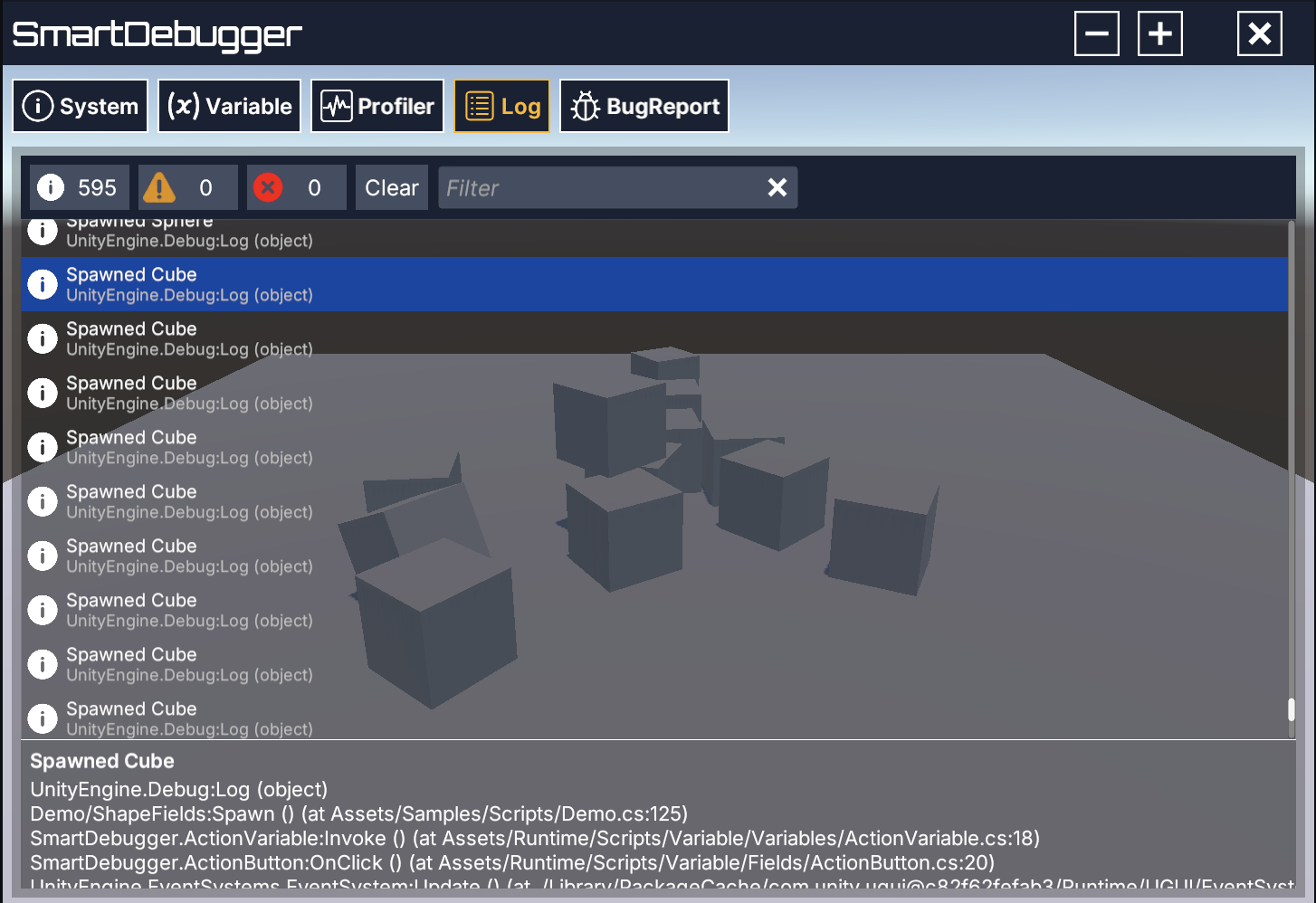
3. Log Viewer
Displays Unity logs (Debug.Log, Debug.LogWarning, Debug.LogError) in real time inside the game.
Features:
- Log level filtering (Log / Warning / Error)
- Text filtering
- Auto-scroll
- Available in build (no Editor connection required)
This is extremely useful when debugging issues on devices.
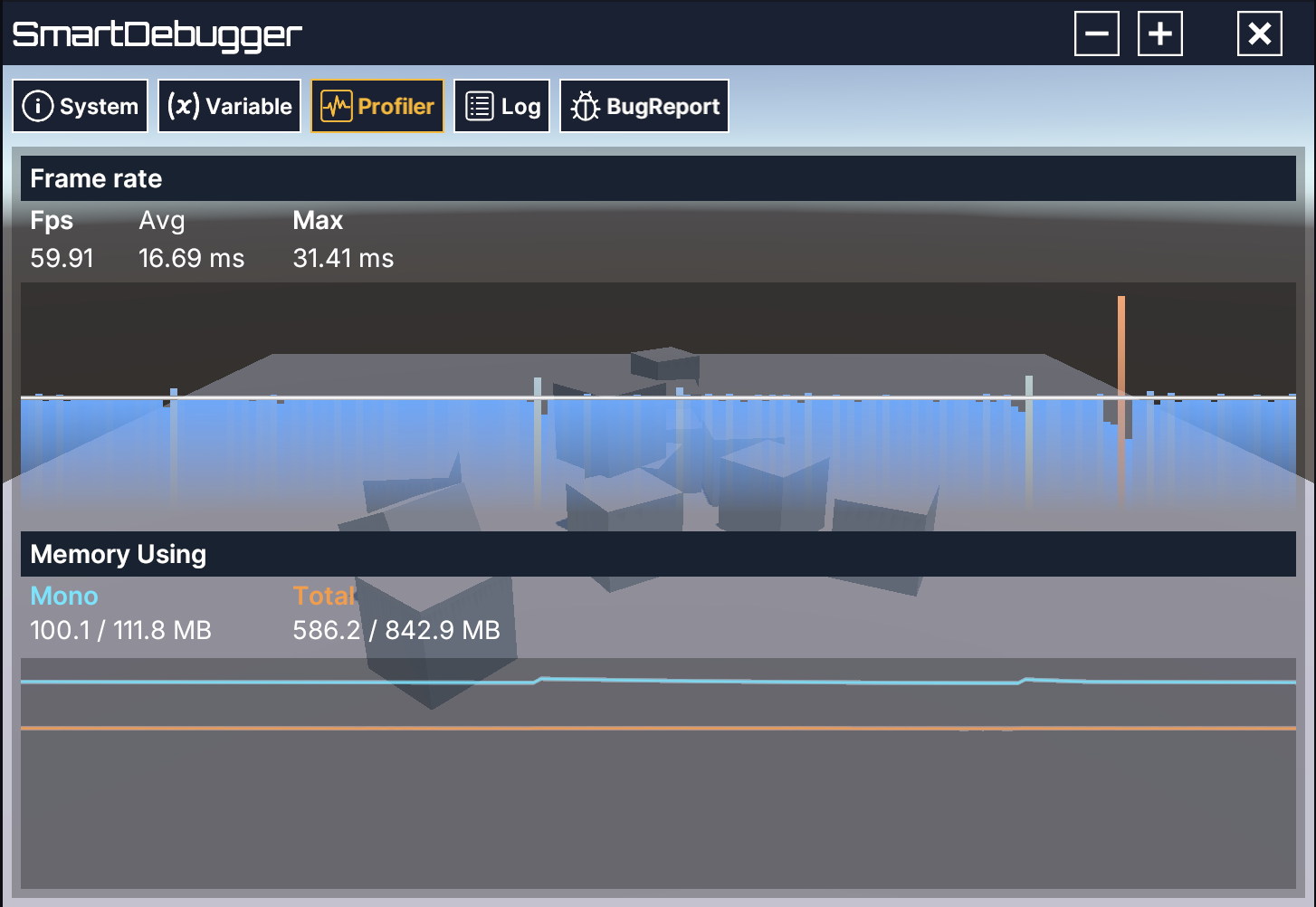
4. Profiler
Provides lightweight runtime performance monitoring.
Displayed metrics:
- FPS (frame rate)
- Memory usage
Use cases:
- Detecting sudden performance drops
- Comparing device performance
This is intended for quick inspection, not deep profiling.
5. Bug Report
Allows testers or developers to collect bug reports directly from the device.
Collected data may include:
- User-entered description
- SystemInfo
- Runtime logs
- Screenshot
Ideal for QA and playtesting builds.
Settings (SDSettings)
SmartDebugger behavior is configured via the SDSettings ScriptableObject.
Create it from the Unity menu:
Create → SmartDebugger → SD Settings
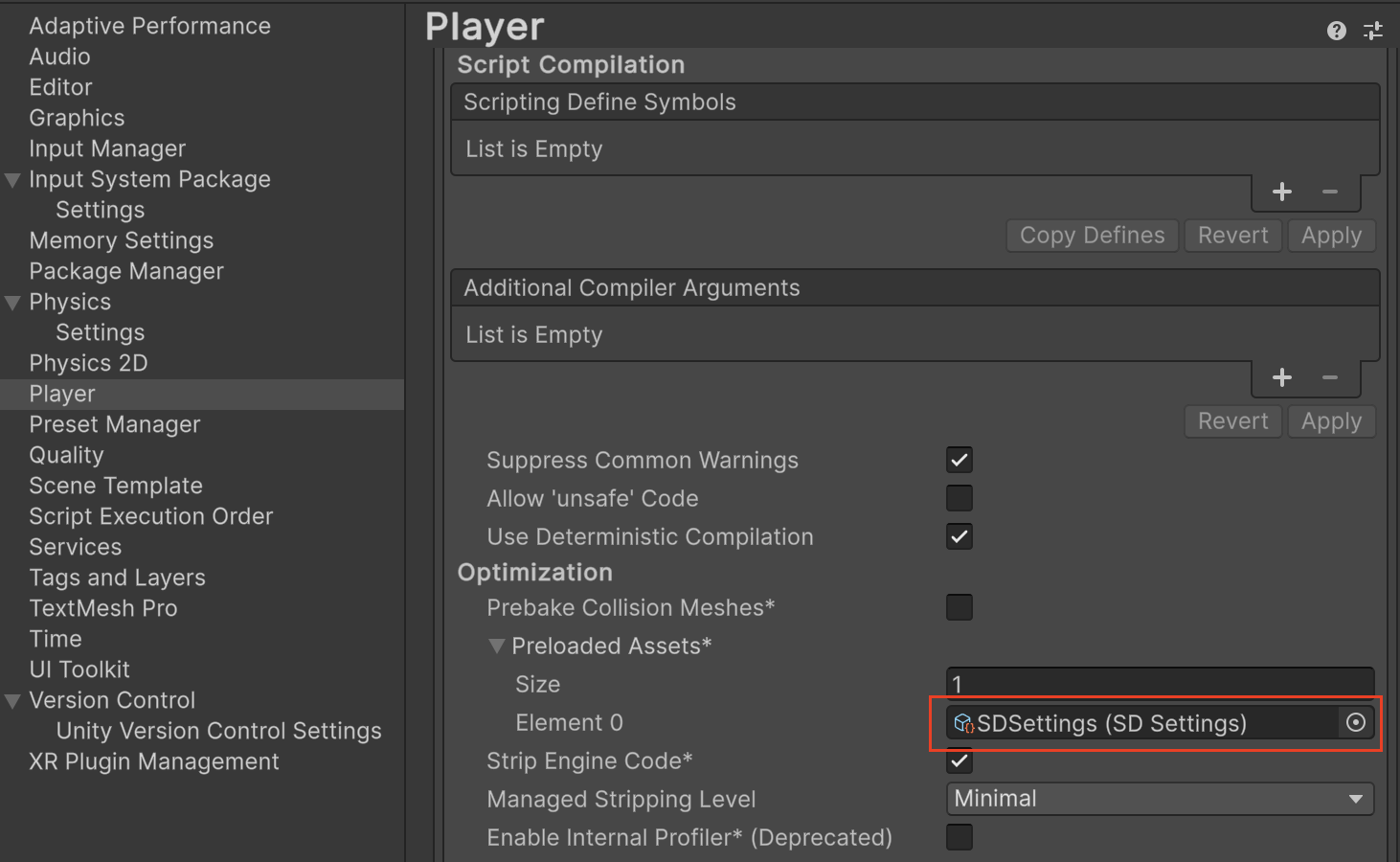
SDSettings must be registered in the preloaded assets.
General Settings
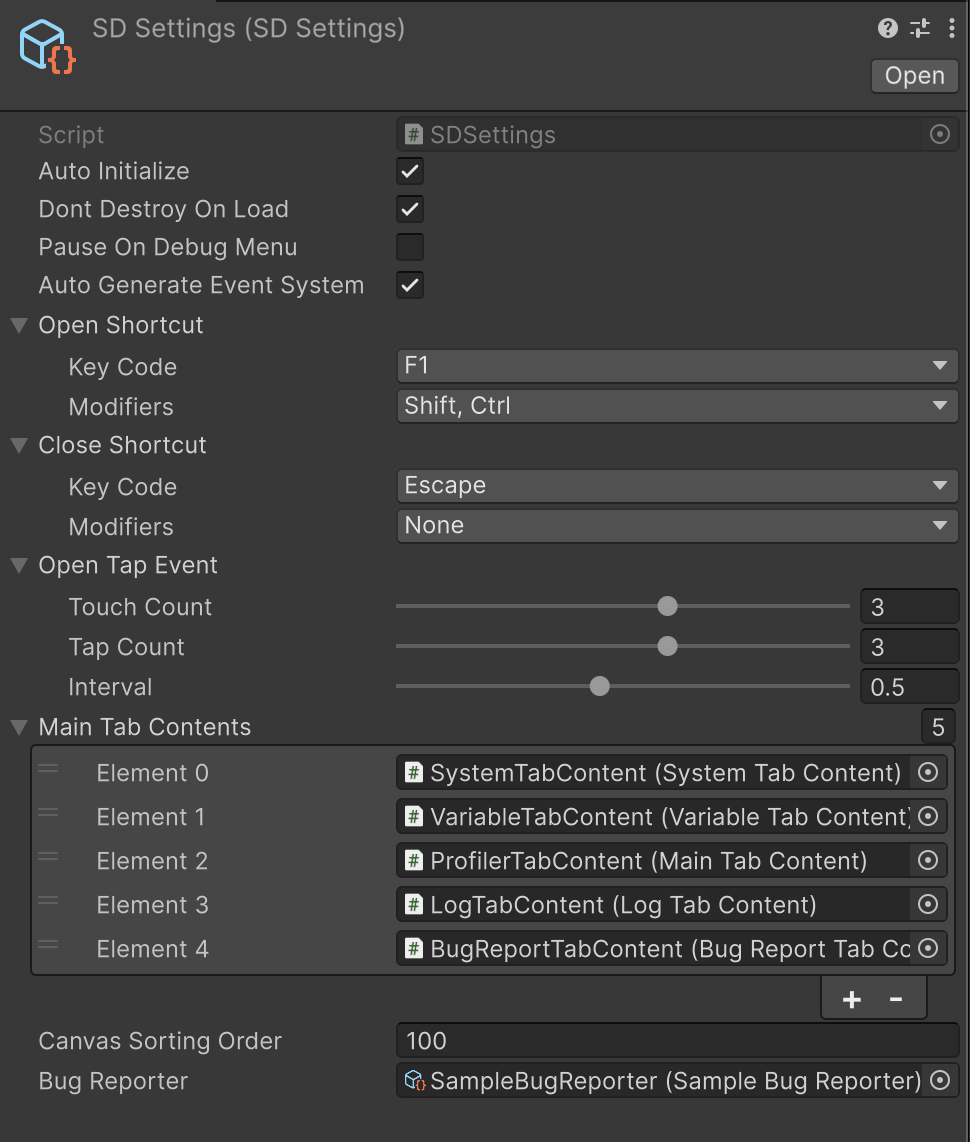
| Setting | Description |
|---|---|
| Auto Initialize | Automatically initializes SmartDebugger at runtime |
| Dont Destroy On Load | Keeps the debugger across scene loads |
| Pause On Debug Menu | Pauses the game while the debug menu is open |
| Auto Generate EventSystem | Automatically creates an EventSystem if none exists |
Open / Close Triggers
SmartDebugger supports both keyboard shortcuts and touch gestures.
Keyboard Shortcuts
- Open Shortcut
- Default:
Ctrl + Shift + F1
- Default:
- Close Shortcut
- Default:
Escape
- Default:
These shortcuts work with:
- Legacy Input
- Input System (if installed)
Touch Gesture (Mobile)
Designed primarily for Android / iOS builds.
Default gesture:
- 3-finger triple tap
- Max interval between taps:
0.5s
This allows opening the debug menu on devices without hardware keyboards.
⚠️ URP / HDRP Runtime Debug UI Conflict
In URP / HDRP, the default 3-finger double tap gesture may conflict with the built-in SRP Runtime Debug UI.
If SmartDebugger does not open as expected, disable the SRP runtime UI by setting:
UnityEngine.Rendering.DebugManager.instance.enableRuntimeUI = false;This should typically be done during application initialization (e.g. at startup).
UI Configuration
| Setting | Description |
|---|---|
| Main Tab Contents | List of tabs shown in the debug menu |
| Canvas Sorting Order | Sorting order of the SmartDebugger UI canvas |
Installation (OpenUPM)
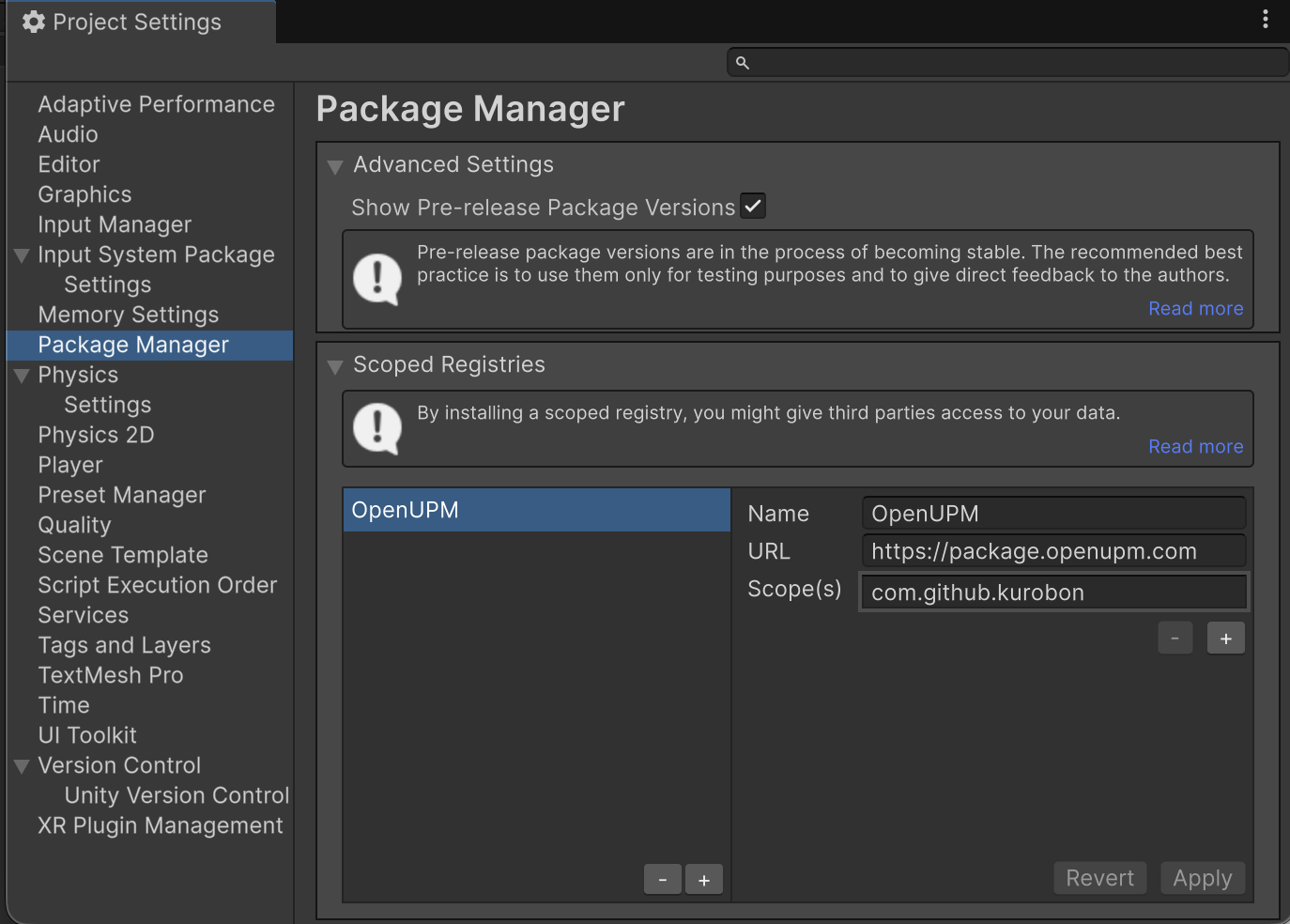
- Open the package manager settings by selecting the Unity menu option Edit > Project Settings > Package Manager.
- Add OpenUPM as a scoped registry to the Package Manager window:
Name: OpenUPM
URL: https://package.openupm.com
Scopes: com.github.kurobon
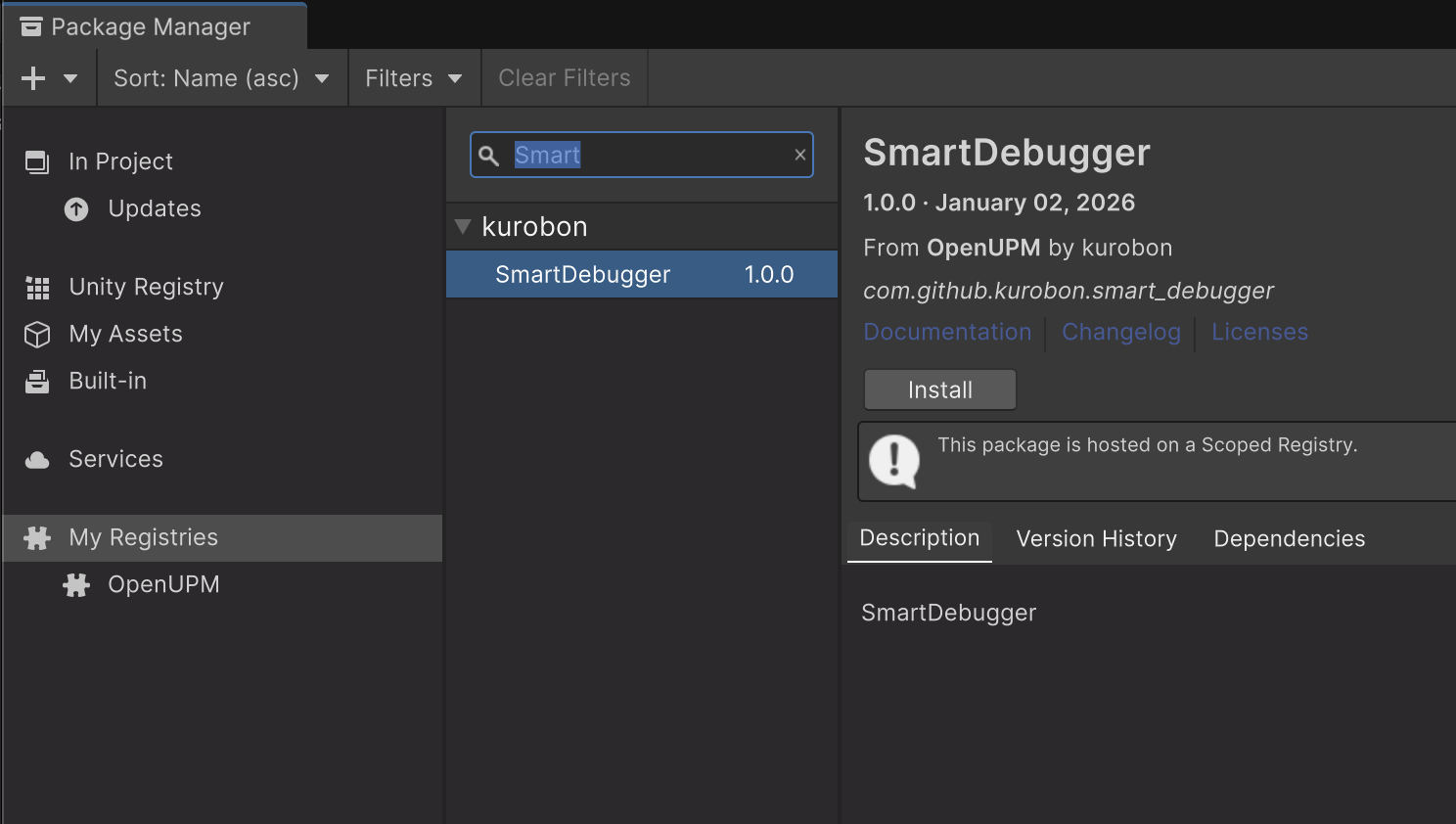
- Open the package manager menu by selecting the Unity menu option Window > Package Manager.
- Set the manager scope drop-down to select My Registries.
- Select the SmartDebugger from the package list and press Install.
Build Configuration
SmartDebugger can be completely disabled by defining the following scripting symbol:
DISABLE_SMART_DEBUG
When this symbol is defined:
- All SmartDebugger runtime logic is excluded
- No UI is created
- No event detectors are registered
This is useful for production / release builds where SmartDebugger should not be active.
You can define this symbol via:
- Player Settings → Scripting Define Symbols, or
- Build scripts / CI configuration
Comments
No comments yet. Be the first!
Sign in to join the conversation
Sign In