Scene System
Provides efficient and versatile scene management functionality for Unity.
com.annulusgames.scene-system Install via UPM
Add to Unity Package Manager using this URL
https://www.pkglnk.dev/scene-system.git?path=Assets/SceneSystem README Markdown
Copy this to your project's README.md

## Installation
Add **Scene System** to your Unity project via Package Manager:
1. Open **Window > Package Manager**
2. Click **+** > **Add package from git URL**
3. Enter:
```
https://www.pkglnk.dev/scene-system.git?path=Assets%2FSceneSystem
```
[](https://www.pkglnk.dev/pkg/scene-system)README
Scene System
Provides efficient and versatile scene management functionality for Unity.


Overview
Scene System is a library that provides functions related to scene management in Unity. This library includes an API for loading scenes and a function that enables scene settings on the editor.
Features
- API for multi-functional scene management that extends SceneManager
- Add SceneReference that can set scene reference on Inspector
- LoadingScreen component for easy implementation of loading screens
- SceneContainer for efficient multi-scene management
- Supports coroutines and async/await
- Support UniRx/UniTask
Setup
Requirement
- Unity 2019.4 or higher
Install
- Open the Package Manager from Window > Package Manager
- "+" button > Add package from git URL
- Enter the following to install
or open Packages/manifest.json and add the following to the dependencies block.
{
    "dependencies": {
        "com.annulusgames.scene-system": "https://github.com/AnnulusGames/SceneSystem.git?path=/Assets/SceneSystem"
    }
}
Namespace
When using Scene System, add the following line at the beginning of the file.
using AnnulusGames.SceneSystem;
Scenes
Scene System provides Scenes class as an alternative to Unity's SceneManager. Scenes class is implemented as a wrapper class for SceneManager and provides richer functionality than a normal SceneManager.
To load/unload a scene, write as follows.
using UnityEngine;
using UnityEngine.SceneManagement;
using AnnulusGames.SceneSystem;

void Example()
{
    // load the scene with BuildSettings Index
    Scenes.LoadSceneAsync(0);
    // load scene by scene name
    Scenes.LoadSceneAsync("SceneName", LoadSceneMode.Additive);
    // synchronous loading is also possible
    Scenes.LoadScene(0);

    // unload the scene at Index of BuildSettings
    Scenes.UnloadSceneAsync(0);
    // unload scene by scene name
    Scenes.UnloadSceneAsync("SceneName");
    // synchronous unloading is also possible
    Scenes.UnloadScene(0);
}
It is also possible to load/unload multiple scenes simultaneously.
// load multiple scenes simultaneously (LoadSceneMode is Addictive only)
Scenes.LoadScenesAsync("Scene1", "Scene2", "Scene3");

// unload multiple scenes simultaneously
Scenes.UnloadScenesAsync("Scene1", "Scene2");
For LoadScenesAsync only, you can set the behavior of loading multiple scenes by setting LoadMultiSceneMode.
// load multiple scenes simultaneously
Scenes.LoadScenesAsync(LoadMultiSceneMode.Parallel, "Scene1", "Scene2", "Scene3");

// load multiple scenes one by one
Scenes.LoadScenesAsync(LoadMultiSceneMode.Sequential, "Scene1", "Scene2");
Events
As with a normal SceneManager, it is possible to acquire timings such as scene loading with events.
Scenes.onSceneLoaded += (scene, loadSceneMode) =>
{
    Debug.Log(scene.name + " loaded");
};

Scenes.onSceneUnLoaded += scene =>
{
    Debug.Log(scene.name + " unloaded");
};

Scenes.onActiveSceneChanged += (current, next) =>
{
    Debug.Log($"active scene changed from {current.name} to {next.name}");
};
Also, by passing a class that implements ILoadSceneCallbackReceiver, it is possible to process these events collectively.
using UnityEngine;
using UnityEngine.SceneManagement;
using AnnulusGames.SceneSystem;

public class Example : MonoBehaviour, ILoadSceneCallbackReceiver
{
    void Start()
    {
        Scenes.AddCallbackReceiver(this);
    }

    void ILoadSceneCallbackReceiver.OnActiveSceneChanged(Scene current, Scene next)
    {
        Debug.Log($"active scene changed from {current.name} to {next.name}");
    }

    void ILoadSceneCallbackReceiver.OnLoad(Scene scene, LoadSceneMode loadSceneMode)
    {
        Debug.Log(scene.name + "loaded");
    }

    void ILoadSceneCallbackReceiver.OnUnload(Scene scene)
    {
        Debug.Log(scene.name + "unloaded");
    }
}
SceneReference
By using SceneReference, it becomes possible to edit Scene assets on the Inspector.
using UnityEngine;
using AnnulusGames.SceneSystem;

public class SceneReferenceExample : MonoBehaviour
{
    public SceneReference sceneReference;

    void Load()
    {
        // can be used as an argument for LoadScene
        Scenes.LoadScene(sceneReference);

        // get scene asset file path from assetPath
        Debug.Log(sceneReference.assetPath);
    }
}

LoadSceneOperationHandle
All asynchronous methods in the Scene System have a structure called LoadSceneOperationHandle as a return value. By using LoadSceneOperationHandle, it is possible to wait for transitions, enable scenes, etc.
Wait for the process to complete
Use onCompleted to wait for the completion of processing in a callback.
var handle = Scenes.LoadSceneAsync("SceneName");
handle.onCompleted += () =>
{
     Debug.Log("completed");
};
To wait in a coroutine, use the ToYieldInteraction method.
var handle = Scenes.LoadSceneAsync("SceneName");
yield return handle.ToYieldInteraction();
To wait with async/await, use the ToTask method.
var handle = Scenes.LoadSceneAsync("SceneName");
await handle.ToTask();
Get Progress
It is also possible to get the progress from the LoadSceneOperationHandle.
var handle = Scenes.LoadSceneAsync("SceneName");

// get the progress as a float between 0 and 1
var progress = handle.Progress;

// get if completed
var isDone = handle.IsDone;
Activate Scene
By using the AllowSceneActivation method, it is possible to adjust the timing of scene loading completion. Here is an example of using AllowSceneActivation inside a coroutine.
var handle = Scenes.LoadSceneAsync("SceneName");

// set allowSceneActivation to false
handle.AllowSceneActivation(false);

// wait until progress reaches 0.9 (loading is complete)
yield return new WaitWhile(() => handle.Progress < 0.9f);

// set allowSceneActivation to true
handle.AllowSceneActivation(true);

// wait until the scene is activated
yield return handle.ToYieldInteraction();
Regarding the behavior of Progress and IsDone values when AllowSceneActivation is set to false, it conforms to Unity's allowSceneActivation. https://docs.unity3d.com/2019.4/Documentation/ScriptReference/AsyncOperation-allowSceneActivation.html
Loading Screen
Scene System provides the LoadingScreen component as a function to display the loading screen.
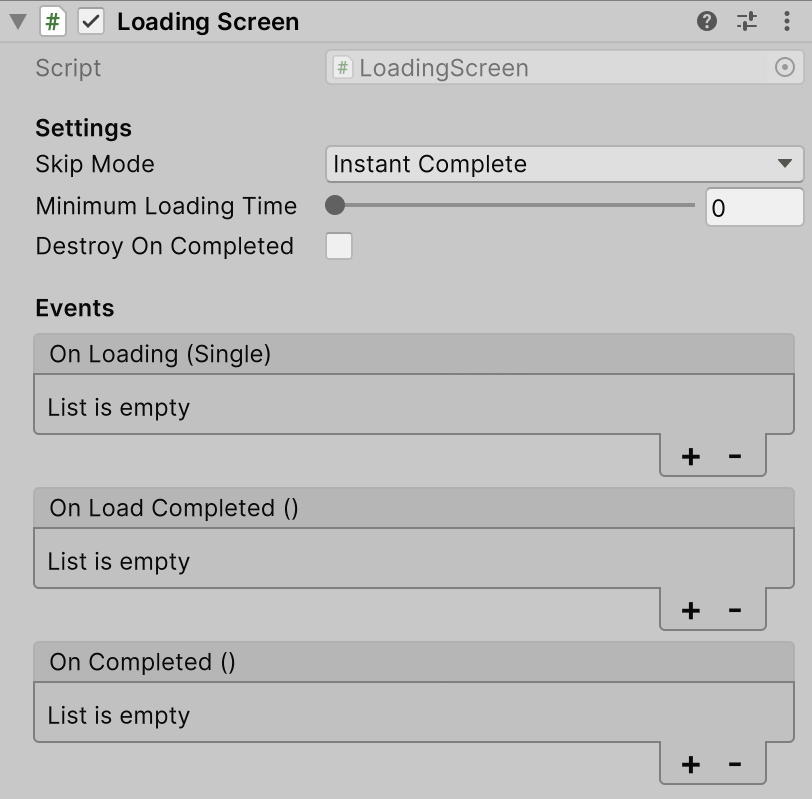
You can create your own loading screen by customizing the LoadingScreen component.
Settings
Skip Mode
Set the behavior when loading is completed.
| SkipMode | Behavior |
|---|---|
| Instant Complete | Activates the next scene immediately after loading completes. |
| Any Key | Activates the next scene when any key is pressed after loading is complete. |
| Manual | After loading is complete, manually activate the next scene from Script. |
If set to Manual, the next scene can be enabled by calling AllowCompletion().
LoadingScreen loadingScreen;
loadingScreen.AllowCompletion();
Minimum Loading Time
Set the minimum amount of time it takes to load. Even if the loading of the scene is completed, it is possible to pretend that the loading is being performed for the set time.
Destroy On Completed
If set to true, automatically remove the object after the scene transition is complete.
On Loading
Called every frame while the scene is loading.
On Load Completed
Called when the scene has finished loading. The scene is not activated at this point.
On Completed
Called when the scene is activated.
Loading Screen Implementation
To use the loading screen created with LoadingScreen component, use the WithLoadingScreen method. This method is defined as an extension method of LoadSceneOperationHandle and can be used for any asynchronous method of the Scene System.
using UnityEngine;
using AnnulusGames.SceneSystem;

public sealed class LoadingScreenSample : MonoBehaviour
{
     public LoadingScreen loadingScreenPrefab;

     public void Load()
     {
         // generate a prefab for the loading screen and set it to DontDestroyOnLoad
         var loadingScreen = Instantiate(loadingScreenPrefab);
         Don't DestroyOnLoad(loadingScreen);

         // pass the loadingScreen generated by WithLoadingScreen
         Scenes.LoadSceneAsync("SceneName")
             .WithLoadingScreen(loadingScreen);
     }
}
Note: Do not call AllowSceneActivation on a LoadSceneOperationHandle that has a LoadingScreen set. Since it manipulates allowSceneActivation on the LoadingScreen side, it may cause unexpected behavior.
Extend LoadingScreen
It is also possible to create your own class by inheriting from LoadingScreen.
using UnityEngine;
using AnnulusGames.SceneSystem;

public class CustomLoadingScreen : LoadingScreen
{
    public override void OnCompleted()
    {
        Debug.Log("completed");
    }

    public override void OnLoadCompleted()
    {
        Debug.Log("load completed");
    }

    public override void OnLoading(float progress)
    {
        Debug.Log("loading...");
    }
}
Sample
A loading screen implementation sample using LoadingScreen is available and can be installed from Package Manager/Samples. Please refer to it when you actually create a loading screen.
SceneContainer
When adopting a project structure that uses multiple scenes in Unity, it is necessary to implement the transition of multiple scenes in some way. Scene System provides the SceneContainer class as a function for performing such complex scene transitions.
Create a container
When using SceneContainer, first create a new container with SceneContainer.Create().
// create a new container
var container = SceneContainer.Create();
Register a scene to be loaded/unloaded at runtime with the Register method.
// pass the key associated with the scene to the first argument, and the scene name and scene buildIndex to the second argument
container.Register("Page1", "Sample1A");
container.Register("Page1", "Sample1B");

container.Register("Page2", "Sample2");
Register a scene that exists permanently at runtime with the RegisterPermanent method.
// pass the scene name and scene buildIndex as arguments
container.RegisterPermanent("Permanent1");
container.RegisterPermanent("Permanent2");
Finally call the Build method. Calling this method will enable the container and load the scene registered with RegisterPermanent at the same time. This process is asynchronous and can be waited for in the same way as a normal scene load.
// build the container
var handle = container.Build();

// wait for completion
yield return handle.ToYieldInteraction();
Scene transition using containers
Use the Push method to perform scene transitions with SceneContainer. The history of scenes is stacked, and it is possible to return to the previous scene by calling the Pop method.
// transition to the scene associated with the registered key
var handle = container.Push("Page1");
yield return handle.ToYieldInteraction();

// return to previous scene
handle = container.Pop();
yield return handle.ToYieldInteraction();
By calling the ClearStack method, you can reset the history and unload any scenes you have loaded with push.
var handle = container.ClearStack();
You can also call Release to destroy the container and unload all scenes, including persistent scenes.
var handle = container.Release();
Scene System + UniRx
By introducing UniRx, it becomes possible to observable events related to scene loading.
To get scene loading/unloading events and active scene switching events as IObservable, write as follows.
using AnnulusGames.SceneSystem;
using UniRx;

void Example()
{
    Scenes.OnSceneLoadedAsObservable().Subscribe(x =>
    {
        var scene = x.scene;
        var loadSceneMode = x.loadSceneMode;

        Debug.Log("scene loaded");
    });

    Scenes.OnSceneUnloadedAsObservable().Subscribe(scene =>
    {
        Debug.Log("scene unloaded");
    });

    Scenes.OnActiveSceneChangedAsObservable().Subscribe(x =>
    {
        var current = x.current;
        var next = x.next;

        Debug.Log("active scene changed");
    });
}
It is also possible to get SceneContainer events as IObservable.
SceneContainer container;

void Example()
{
    container.OnBeforePushAsObservable().Subscribe(x =>
    {
        Debug.Log("Current: " + x.current + " Next: " + x.next);
    });

    container.OnAfterPushAsObservable().Subscribe(x =>
    {
        Debug.Log("Current: " + x.current + " Next: " + x.next);
    });

    container.OnBeforePopAsObservable().Subscribe(x =>
    {
        Debug.Log("Current: " + x.current + " Next: " + x.next);
    });

    container.OnAfterPopAsObservable().Subscribe(x =>
    {
        Debug.Log("Current: " + x.current + " Next: " + x.next);
    });
}
Scene System + UniTask
By introducing UniTask, it becomes possible to wait for LoadSceneOperationHandle with UniTask.
Use ToUniTask to convert the LoadSceneOperationHandle to a UniTask.
using AnnulusGames.SceneSystem;
using Cysharp.Threading.Tasks;

async UniTaskVoid ExampleAsync()
{
    await Scenes.LoadAsync("SceneName").ToUniTask();
}
License
Comments
No comments yet. Be the first!
Sign in to join the conversation
Sign In