Planter
The plant growing simulation from Cloud Gardens as an Editor package
games.noio.planter 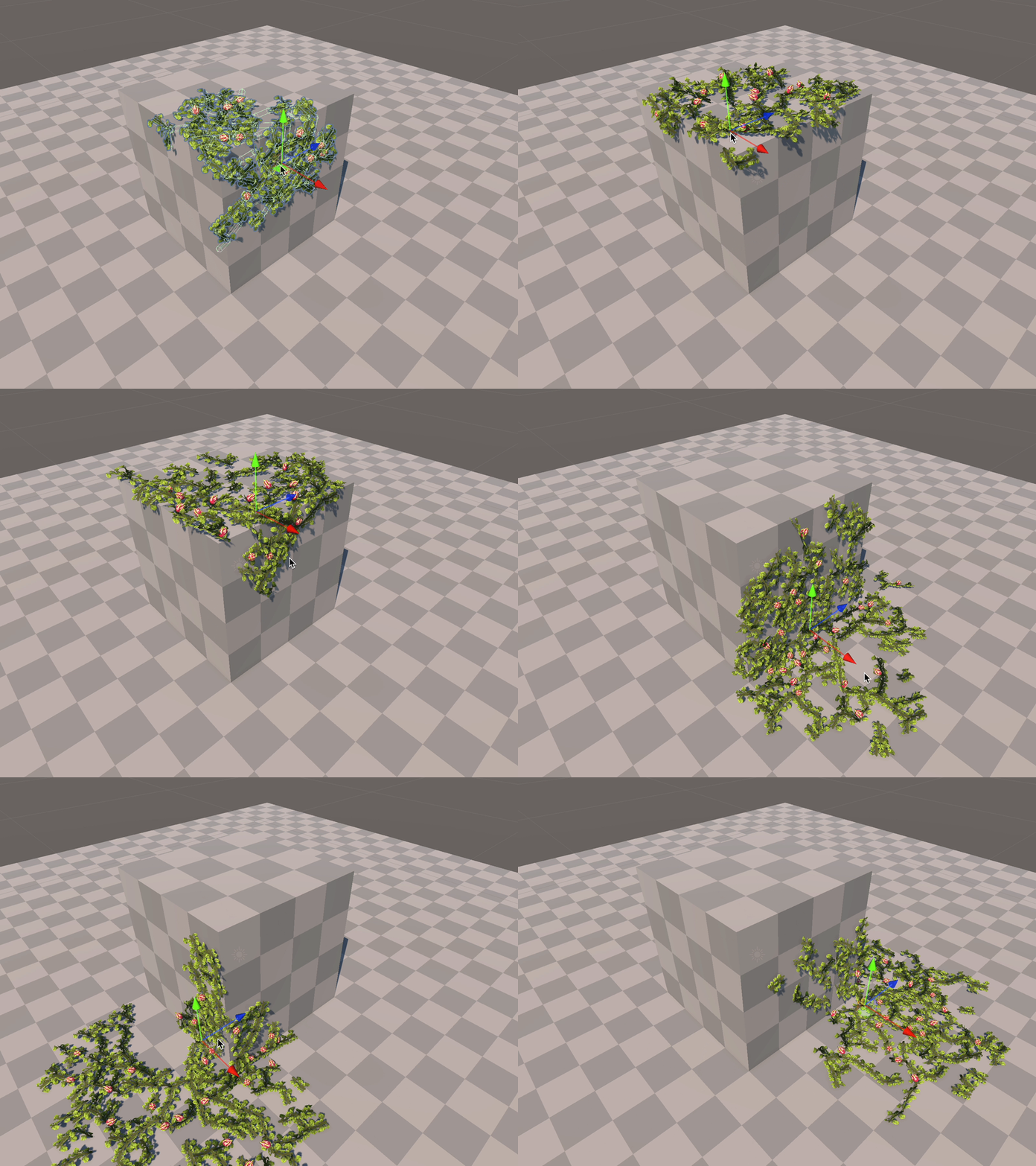
Install via UPM
Add to Unity Package Manager using this URL
https://www.pkglnk.dev/planter.git README Markdown
Copy this to your project's README.md

## Installation
Add **Planter** to your Unity project via Package Manager:
1. Open **Window > Package Manager**
2. Click **+** > **Add package from git URL**
3. Enter:
```
https://www.pkglnk.dev/planter.git
```
[](https://www.pkglnk.dev/pkg/planter)README
Planter
The plant simulation from Cloud Gardens as a Unity package for level design.
Only Tested with Unity 2022 and up. It should work in older versions, because it's just C#8.0+ features that are missing.
Getting Started
- Open the Package Manager in Unity.
- Select "Add package from git URL..."
- Paste
https://github.com/noio/games.noio.planter.git - Open the "Samples" tab and install the "Sample Plant Setup".
- Open
Sample Plant Setup/Scene/Sample Scene
How It Works
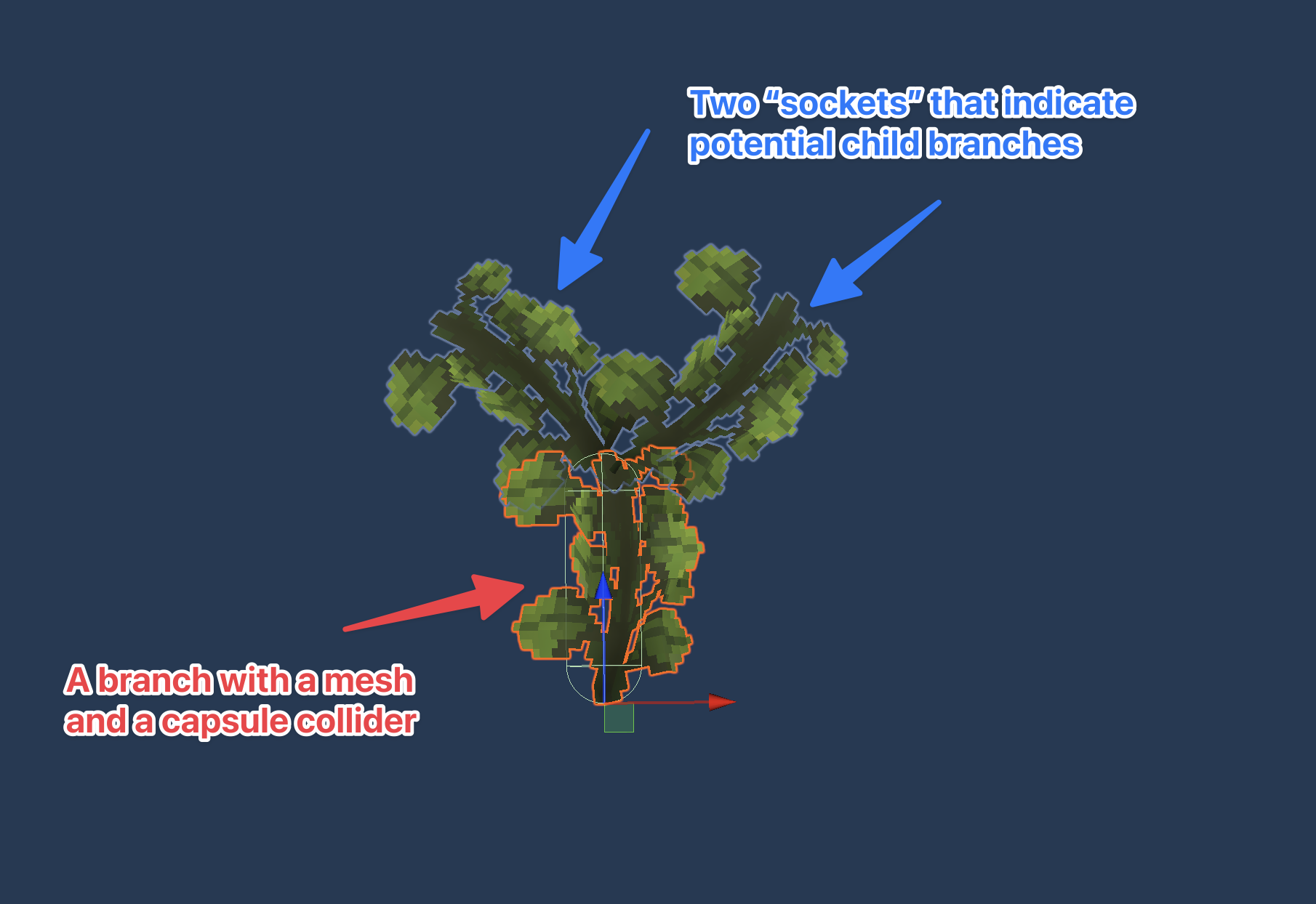
Plants are generated based on Branches. Each branch is a small piece of the plant, which will spawn "child" branches in specific positions.
Branches are set up in Branch Templates, prefabs that determine what the branch looks like and where the Sockets are for child branches.
Open up Sample Plant Setup/Sample Branch for an example:
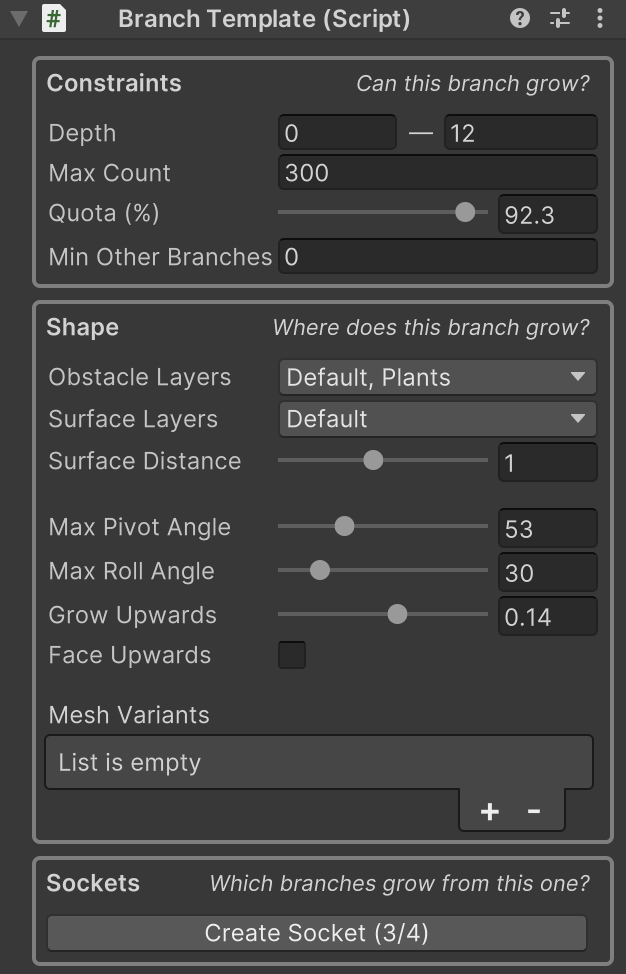
The Branch Template contains a bunch of configuration determining how and where this branch will grow, this is the meat of the plant setup:
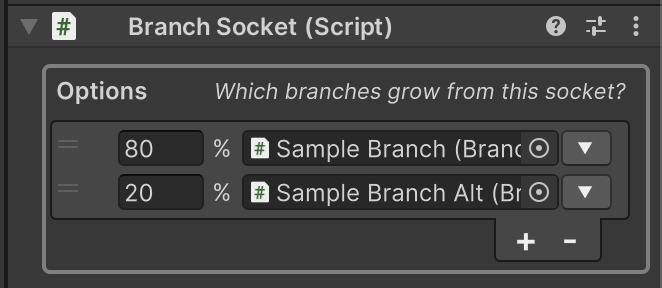
For each Branch Socket, you can set which types of branches are allowed to grow there, with a percentage probability:
No comments yet. Be the first!