realvirtual MCP Server
MCP Server bridge for AI agent integration with realvirtual Digital Twins. Enables Unity simulation control through MCP protocol via WebSocket.
io.realvirtual.mcp 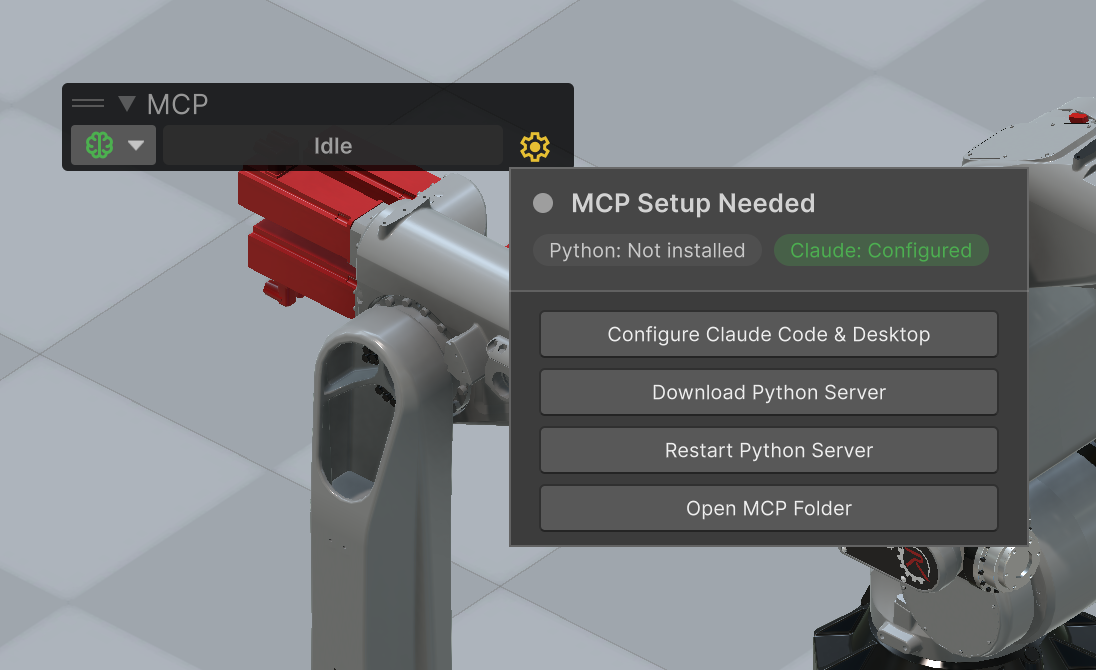
Install via UPM
Add to Unity Package Manager using this URL
https://www.pkglnk.dev/mcp.git README Markdown
Copy this to your project's README.md

## Installation
Add **realvirtual MCP Server** to your Unity project via Package Manager:
1. Open **Window > Package Manager**
2. Click **+** > **Add package from git URL**
3. Enter:
```
https://www.pkglnk.dev/mcp.git
```
[](https://www.pkglnk.dev/pkg/mcp)Dependencies (1)
README
realvirtual Unity MCP Package
Give AI agents full control over your Unity Editor - scenes, GameObjects, components, simulation, digital twins, and more.
This open-source Unity package implements a Model Context Protocol (MCP) server that lets AI agents like Claude, Cursor, or any MCP-compatible client interact with Unity in real time. Built for any Unity project - including industrial digital twins, robotics simulation, and virtual commissioning.
Why This MCP Server Is Different
Most MCP servers for Unity require you to edit Python code every time you add a new tool. This one doesn't. You define tools entirely in C# with a simple attribute - the Python server discovers them automatically:
[McpTool("Spawn an enemy at position")]
public static string SpawnEnemy(
    [McpParam("Prefab name")] string prefab,
    [McpParam("X position")] float x,
    [McpParam("Z position")] float z)
{
    // Your Unity code here - runs on main thread
}
That's it. No Python changes, no server restart, no tool registration. Just recompile in Unity and the AI agent sees your new tool.
Key advantages:
- Works with any Unity project - Not tied to a specific framework or asset. Install it in any project and start adding AI-controllable tools
- Zero Python knowledge needed - Define tools in C#, the language you're already using
- Auto-discovery - Tools are found via reflection, no manual registration
- 60+ built-in tools - Scene, GameObjects, components, transforms, simulation, screenshots, prefabs, and more
- Extensible in minutes - Add
[McpTool]to any static method and it's available to AI agents - Self-contained - Ships with embedded Python 3.12, no system Python required
- One-click setup - Download Python + configure Claude from the Unity toolbar
- Survives domain reloads - Auto-reconnects after Unity recompiles scripts
- Multi-instance support - Run multiple Unity instances, each with its own MCP server
Digital Twin Tools with realvirtual
This MCP package works standalone with any Unity project. When combined with the realvirtual framework (Unity Asset Store), you get additional MCP tools purpose-built for industrial digital twins and virtual commissioning:
- Drives - Control motors, actuators, conveyors:
drive_to,drive_jog_forward,drive_stop,drive_set_speed - Sensors - Read industrial sensors:
sensor_list,sensor_get,sensor_get_occupied - PLC Signals - Read/write PLC I/O:
signal_set_bool,signal_set_int,signal_set_float - Robot IK - Inverse kinematics control:
ik_get_state,ik_solve_target,ik_verify_fk
This enables AI agents to operate complete virtual factory simulations - move robots, control conveyors, read sensors, and interact with PLC programs in real time.
AI Agent (Claude Desktop / Claude Code / Cursor)
    |
    | MCP Protocol (stdio or SSE)
    v
Python MCP Server  -->  github.com/game4automation/realvirtual-MCP
    |
    | WebSocket (JSON, Port 18711)
    v
This Unity Package (C# WebSocket server + tool registry)
Installation
Via Unity Package Manager (Git URL)
- Open Unity Window > Package Manager
- Click + > Add package from git URL
- Enter:
https://github.com/game4automation/io.realvirtual.mcp.git
Updating
Unity caches git packages by commit hash. To get the latest version:
- Open Window > Package Manager
- Select realvirtual MCP Server
- Click Update (if available)
If no update button appears, remove the lock entry for io.realvirtual.mcp from Packages/packages-lock.json and reopen Unity.
Requirements
- Unity 6000.0+
- Newtonsoft JSON (
com.unity.nuget.newtonsoft-json) - git must be installed and available in PATH (for Python server download/update) — git-scm.com
Setup
Automated Setup (recommended)
After installing the Unity package:
- A brain icon appears in the Unity toolbar - this is the MCP status indicator
- Click the gear icon next to it to open the setup popup
- Click Clone Python Server - this runs
git cloneto download the Python server (~70 MB) intoAssets/StreamingAssets/realvirtual-MCP/ - Click Configure Claude - this writes the MCP configuration to Claude Desktop and/or Claude Code
To update later, click Update Python Server (git pull) in the same popup.
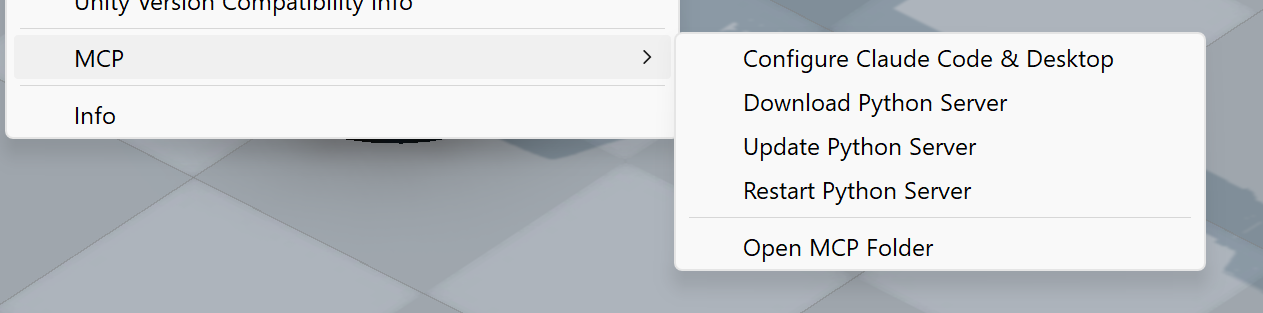
You can also access setup via the Unity menu: Tools > realvirtual > MCP
Manual Setup
If you prefer to set up manually or the automated setup doesn't work:
Clone the Python server repository:
cd <your-project>/Assets/StreamingAssets
git clone https://github.com/game4automation/realvirtual-MCP.git
To update later:
cd <your-project>/Assets/StreamingAssets/realvirtual-MCP
git pull
Configure your MCP client manually (see Python MCP Server for configuration details)
The Python MCP server is available separately at github.com/game4automation/realvirtual-MCP.
How It Works
This package runs a WebSocket server inside the Unity Editor. When an AI agent sends a tool call, the Python MCP server forwards it over WebSocket to Unity, which executes it on the main thread and returns the result.
Key components:
- McpWebSocketHandler - WebSocket server (port 18711, auto-increments if busy)
- McpToolRegistry - Discovers all
[McpTool]methods via reflection at startup - McpMainThreadDispatcher - Bridges WebSocket threads to Unity's main thread
- McpEditorBridge - Auto-starts the server when Unity opens (
[InitializeOnLoad]) - McpToolbarButton - Status indicator with color-coded connection state
Built-in Tools
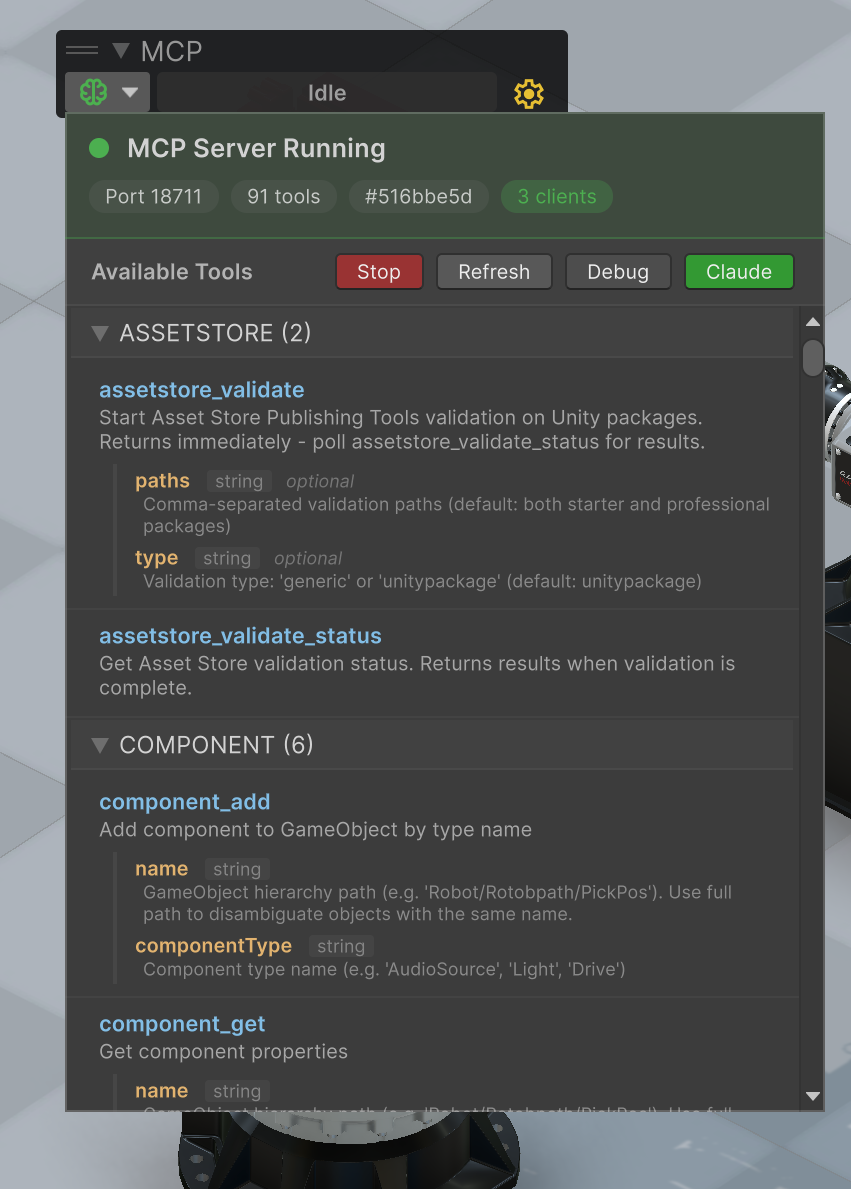
The package includes 60+ tools organized by category:
| Category | Examples |
|---|---|
| Simulation | sim_play, sim_stop, sim_pause, sim_status |
| Scene | scene_hierarchy, scene_find, scene_get_info |
| GameObjects | game_object_create, game_object_destroy, game_object_rename |
| Components | component_get, component_set, component_add, component_remove |
| Transforms | transform_set_position, transform_set_rotation, transform_set_scale |
| Materials | material_set_color, material_get_color |
| Physics | physics_add_rigidbody, physics_add_collider |
| Prefabs | prefab_instantiate, prefab_find, prefab_open, prefab_save |
| Editor | editor_recompile, editor_read_log, editor_save_scene, editor_wait_ready |
| Screenshots | screenshot_editor, screenshot_game, screenshot_scene |
When used with the realvirtual framework, additional tools are available:
| Category | Examples |
|---|---|
| Drives | drive_list, drive_to, drive_jog_forward, drive_stop |
| Sensors | sensor_list, sensor_get, sensor_get_occupied |
| Signals | signal_list, signal_set_bool, signal_set_int, signal_set_float |
| IK | ik_get_state, ik_solve_target, ik_verify_fk |
Creating Custom Tools
Add [McpTool] to any public static string method. Tools are discovered automatically via reflection - no registration needed.
using realvirtual.MCP;

public static class MyTools
{
    [McpTool("Get current time")]
    public static string GetTime()
    {
        return $"{{\"time\":\"{System.DateTime.Now}\"}}";
    }

    [McpTool("Add two numbers")]
    public static string Add(
        [McpParam("First number")] float a,
        [McpParam("Second number")] float b)
    {
        return $"{{\"result\":{a + b}}}";
    }
}
Rules:
- Method must be
public staticand returnstring(JSON) - Tool names auto-convert from PascalCase to snake_case (
GetTime->get_time) - Use
[McpParam("description")]on parameters for AI agent context - Optional parameters need default values
- Use
ToolHelpers.FindGameObject(),ToolHelpers.Ok(),ToolHelpers.Error()for common patterns
Toolbar Status
The toolbar brain icon shows connection state:
| Color | Meaning |
|---|---|
| Gray | Server stopped |
| Yellow | Server running, no clients connected |
| Green | Client(s) connected |
| Orange | Unity compiling scripts |
The activity label next to it shows the currently executing tool with elapsed time.
Troubleshooting
Server not starting
- Check Unity Console for
[MCP]log entries - Toggle debug mode via the gear popup for verbose logging
Tools not discovered
- Ensure methods are
public static stringwith[McpTool]attribute - Check for compile errors in Unity Console
- Click "Refresh" in the toolbar popup
Timeouts during play mode
- Unity throttles editor updates in play mode - tool calls may be slower
- Some operations (
component_set) don't work during play mode
Python MCP Server
The Python server that bridges MCP clients to this Unity package is maintained separately:
github.com/game4automation/realvirtual-MCP
It ships with an embedded Python 3.12 runtime and can be downloaded directly from the Unity toolbar popup.
Support
This package is provided as-is with no support or service included.
For commercial customers of realvirtual, we offer professional services for digital twin development, virtual commissioning, and LLM/AI agent integration. Contact us at https://realvirtual.io for details.
License
MIT License - Copyright (c) 2026 realvirtual GmbH
See LICENSE.md for full text.
Links
- Website: https://realvirtual.io
- Documentation: https://doc.realvirtual.io/extensions/mcp-server
- Python MCP Server: https://github.com/game4automation/realvirtual-MCP
- Unity Asset Store (MCP Server): https://assetstore.unity.com/preview/361912/1260684
- Unity Asset Store (Starter): https://assetstore.unity.com/packages/tools/integration/realvirtual-io-digital-twin-starter-6-303030
- Unity Asset Store (Professional): https://assetstore.unity.com/packages/tools/integration/realvirtual-io-digital-twin-professional-6-301340
No comments yet. Be the first!