Hierarchy Icons
Hierarchy Icons displays component icons directly in the Unity Hierarchy window, allowing you to instantly identify which game objects contain cameras, lights, audio sources, and other components at a glance. This editor extension streamlines scene navigation and object management by eliminating the need to select individual game objects to inspect their components. Fully customizable through Unity's preferences, with easy icon mapping for custom scripts.
com.matthewminer.hierarchy-icons 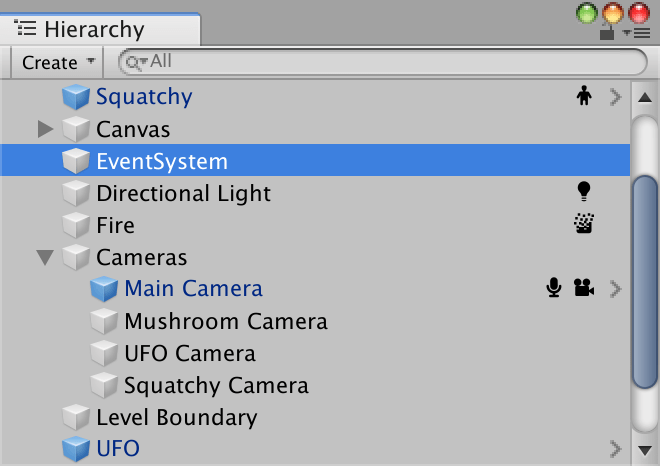
Install via UPM
Add to Unity Package Manager using this URL
https://www.pkglnk.dev/hierarchy-icons.git README Markdown
Copy this to your project's README.md

## Installation
Add **Hierarchy Icons** to your Unity project via Package Manager:
1. Open **Window > Package Manager**
2. Click **+** > **Add package from git URL**
3. Enter:
```
https://www.pkglnk.dev/hierarchy-icons.git
```
[](https://www.pkglnk.dev/pkg/hierarchy-icons)README
Hierarchy Icons
See at a glance what components are attached to game objects in your scene with this editor extension for Unity. Icons beside each item in the Hierarchy pane make it easy to see where your cameras are, which game objects are lights, and which objects have an audio source attached. Think of it as Gizmos for the editor.
Installing
Add the package to your project via UPM using the Git URL:
https://github.com/mminer/hierarchy-icons.git
- Open the Package Manager window in Unity (Window > Package Manager)
- Click the "+" button in the top-left corner
- Select "Install package from git URL..."
- Enter the above Git URL
- Click "Install"
Alternatively, add the following line to your Packages/manifest.json file:
{
  "dependencies": {
    "com.matthewminer.hierarchy-icons": "https://github.com/mminer/hierarchy-icons.git",
    ...
  }
}
You can also clone the repository and point UPM to your local copy.
Using
Icons for components should automatically appear in the Hierarchy. To turn off individual icons, navigate to the Hierarchy Icons pane in Unity's preferences.
Compatibility
Unity 2018.3 or later.
Adding or Updating Icons
The icons come from an icon font, with each letter mapped to a glyph. IcoMoon provides an easy way to create one of these. Select icons for each component, click “Generate Font”, assign a character to each glyph, then download the font and replace HierarchyIcons.ttf.
The mapping from component type to characters is in IconMapping.cs. To add a
new entry, add this line to the componentIcons dictionary:
{ typeof(MyScript), 'x' },
Credit
The icons are from WebHostingHub Glyphs. Licensed under the SIL Open Font License.
No comments yet. Be the first!