GLTFUtility
GLTFUtility enables seamless import and export of glTF and GLB 3D models at runtime and in the editor. Built for simplicity and consistency with Unity's native workflows, it supports static meshes, rigging, animations, materials, textures, and morph targets with multithreading capabilities. URP compatible.
com.siccity.gltfutility 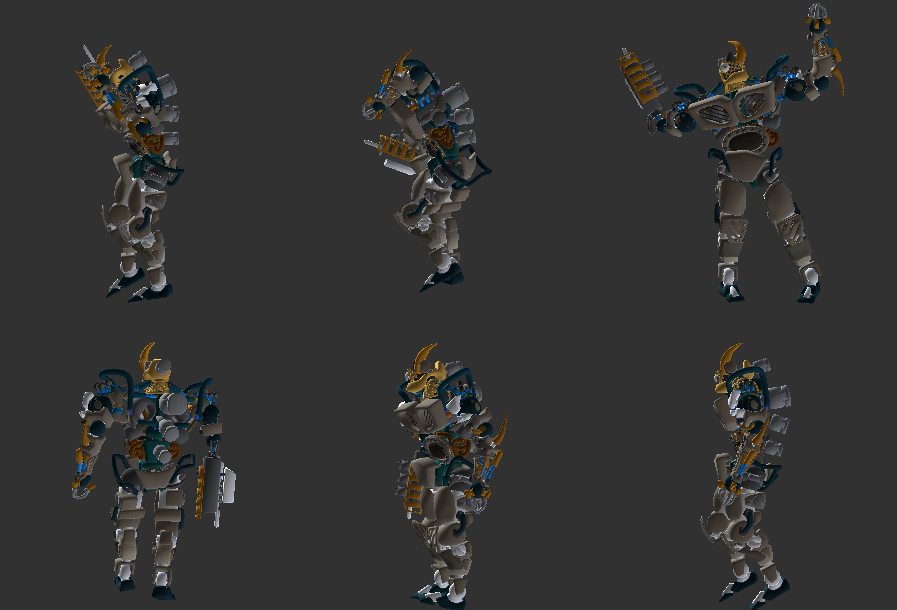
Install via UPM
Add to Unity Package Manager using this URL
https://www.pkglnk.dev/gltfutility.git README Markdown
Copy this to your project's README.md

## Installation
Add **GLTFUtility** to your Unity project via Package Manager:
1. Open **Window > Package Manager**
2. Click **+** > **Add package from git URL**
3. Enter:
```
https://www.pkglnk.dev/gltfutility.git
```
[](https://www.pkglnk.dev/pkg/gltfutility)Dependencies (1)
README



GLTFUtility
Allows you to import and export glTF files during runtime and in editor. glTF is a new opensource 3d model transmission format which supports everything you'll ever need from a format in Unity. Read more about glTF here
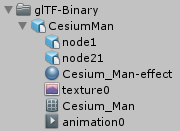
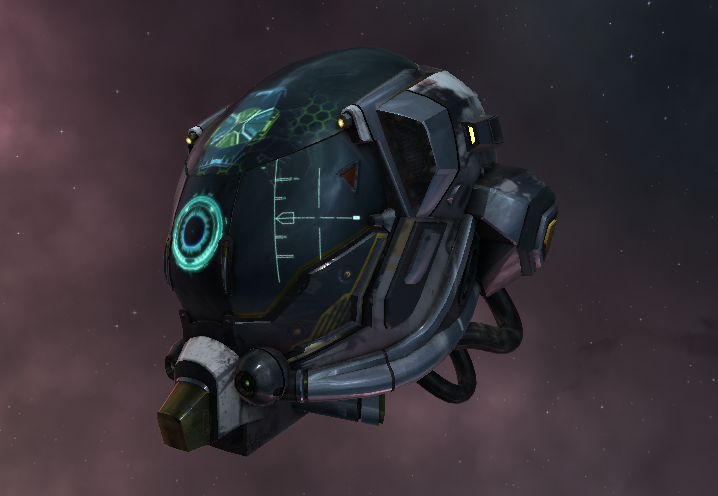
What makes GLTFUtility different?
Focusing on simplicity and ease of use, GLTFUtility aims to be an import-and-forget solution, keeping consistency with built-in functionality.
Installation
Using Unity Package Manager (Help)
"com.siccity.gltfutility": "https://github.com/siccity/gltfutility.git"
Using git
- Get Newtonsoft.JSON from one of these sources
- Official upm package:
"com.unity.nuget.newtonsoft-json": "2.0.0-preview", - Unofficial git repo: https://github.com/jilleJr/Newtonsoft.Json-for-Unity
- Official upm package:
- Clone GLTFUtility by itself or as a submodule
- Clone into your assets folder
git clone git@github.com:Siccity/GLTFUtility.git - Add repo as submodule
git submodule add git@github.com:Siccity/GLTFUtility.git Assets/Submodules/GLTFUtility
- Clone into your assets folder
Manual download
- Get Newtonsoft.JSON from the asset store
- Download GLTFUtility-master.zip and extract to your project assets
Features
System
- Editor import
- Editor export
- Runtime import API
- Runtime export API
- GLTF format
- GLB format
- Multithreading
- URP #75
- HDRP #73
- LWRP
Spec
- Static mesh (with submeshes)
- UVs (up to 8 channels)
- Normals
- Tangents
- Vertex colors
- Materials (metallic/specular, opaque/mask/blend)
- Textures (embedded/external)
- Remote textures (during async only)
- Rig
- Avatar/Mask #70
- Animations (multiple)
- Morph targets (with experimental names)
- Cameras
Extensions
- KHR_texture_transform (partial support)
- KHR_materials_pbrSpecularGlossiness
- KHR_lights_punctual #25
- KHR_draco_mesh_compression #27 WARNING: Said to cause issues on WebGL.
- KHR_mesh_quantization
Known issues
ArgumentNullException: Value cannot be nullin build but not in editor.- This is most likely due to shaders being stripped from the build. To fix this, add the GLTFUtility shaders to the Always Included Shaders list in Graphic Settings.
- Draco compression does not work on iOS and UWP
- More info on #133
Runtime import API
// Single thread
using Siccity.GLTFUtility;

void ImportGLTF(string filepath) {
   GameObject result = Importer.LoadFromFile(filepath);
}
// Multithreaded
using Siccity.GLTFUtility;

void ImportGLTFAsync(string filepath) {
   Importer.ImportGLTFAsync(filepath, new ImportSettings(), OnFinishAsync);
}

void OnFinishAsync(GameObject result, AnimationClip[] animations) {
   Debug.Log("Finished importing " + result.name);
}
Important shader note
To ensure that Unity includes the GLTFUtility shaders in builds, you must add these shaders to the 'Always Included Shaders' list.
- Open Edit -> Project Settings
- Open Graphics
- Scroll to Always Included Shaders
- Under Size, increase the value by 4 and hit Enter.
- In the Project panel, navigate to Packages/GLTFUtility/Materials/Built-in.
- In this directory are 4 .shader files.
- Drag and drop each of the 4 files into one of the 4 newly created rows in Always Included Shaders.
No comments yet. Be the first!