Gameplay Tags
Manage gameplay tags for your project with a flexible, hierarchical system inspired by Unreal Engine. Register tags via JSON files, the Unity Editor, or C# attributes, then organize and query gameplay states, abilities, effects, and interactions through a clean, type-safe API. Eliminates hard-coded references and scales naturally with complex gameplay logic.
com.bandoware.gameplaytags 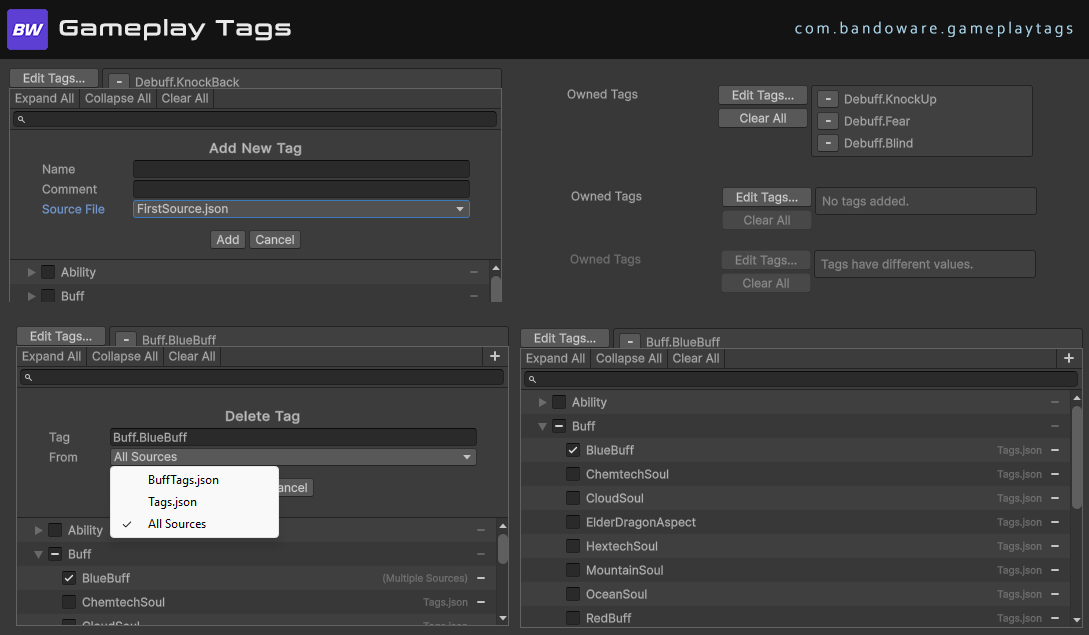
Install via UPM
Add to Unity Package Manager using this URL
https://www.pkglnk.dev/gameplaytags.git README Markdown
Copy this to your project's README.md

## Installation
Add **Gameplay Tags** to your Unity project via Package Manager:
1. Open **Window > Package Manager**
2. Click **+** > **Add package from git URL**
3. Enter:
```
https://www.pkglnk.dev/gameplaytags.git
```
[](https://www.pkglnk.dev/pkg/gameplaytags)Dependencies (1)
README
Gameplay Tags for Unity
Overview
This package brings to Unity the concept of Gameplay Tags, inspired by Unreal Engine’s Gameplay Tag system.
Gameplay Tags are string-based identifiers organized in a hierarchical way. They provide a flexible and efficient way to describe, categorize, and query gameplay-related states and properties.
They are useful for:
- Marking abilities, states, effects, or interactions.
- Checking conditions without hard-coded references.
- Creating clean and scalable gameplay logic.
With this package, you can register, organize, and use tags directly in Unity projects with an API designed to feel natural in C#.
Getting Started
Before you can use tags, you first need to create them. There are three main ways to register tags in your project:
1. JSON Files in Project Settings
Create a folder named ProjectSettings/GameplayTags.
Every .json file inside this folder will be automatically scanned and its tags registered.
The format is a JSON object where each property is a tag. The value of that property is another object, which may optionally include metadata such as a developer-facing comment:
{
  "Damage.Fatal": {},
  "Damage.Miss": {
    "Comment": "Attack landed but did not cause damage"
  },
  "CrowdControl.Stunned": {
    "Comment": "Unit cannot act at all"
  }
}
👉 You can have multiple JSON files in this folder — there’s no limitation to just one.
2. Creating Tags via the Editor
Tags can also be created directly in the Unity Editor. The editor will generate the corresponding JSON file automatically and insert the tag for you (creating the file if necessary).

[Placeholder — here goes the screenshot showing where to add tags in the Editor]
3. Registering Tags with Assembly Attributes
The third option is to declare tags directly in your assembly using attributes:
[assembly: GameplayTag("Damage.Fatal")]
[assembly: GameplayTag("Damage.Miss")]
[assembly: GameplayTag("CrowdControl.Stunned")]
This approach is particularly useful when your code requires the existence of certain tags. It ensures that the tag is always registered alongside the code that depends on it.
API
GameplayTag
A lightweight struct representing a gameplay tag.
Strings are implicitly convertible to GameplayTag, so you can write "Damage.Fire" directly where a GameplayTag is expected.
Core Properties
string Name→ The full name of the tag (e.g.,"Damage.Fire").bool IsValid→ Whether the tag is valid (registered in the system).bool IsNone→ Whether the tag is the specialNonetag.bool IsLeaf→ Whether the tag has no children.GameplayTag None→ A special value representing an empty or invalid tag.
Hierarchy Properties
ParentTags→ All parent tags of this tag, ordered from root to immediate parent.- Example: for
"A.B.C", the parent tags are["A", "A.B"].
- Example: for
ChildTags→ All direct child tags of this tag.- Example: if
"A.B.C"has two children"A.B.C.D"and"A.B.C.E", they will appear here.
- Example: if
HierarchyTags→ The full hierarchy chain including this tag and all of its parents.- Example: for
"A.B.C", the hierarchy tags are["A", "A.B", "A.B.C"].
- Example: for
GameplayTagManager
A static class responsible for managing all registered tags in the project.
RequestTag(string name, bool logWarningIfNotFound = true)→ Gets aGameplayTagby name (returnsGameplayTag.Noneif not found).GetAllTags()→ Returns all registered tags.HasBeenReloaded(property) → Indicates whether the tags have been reloaded at runtime.
GameplayTagContainer
The main API for working with sets of tags. Provides methods to add, remove, query, and combine gameplay tags.
Managing Tags
AddTag(tag)→ Adds a tag to the container.RemoveTag(tag)→ Removes a tag from the container.Clear()→ Clears all tags.
Querying Tags
HasTag(tag)→ Checks if the container contains the given tag (directly or via hierarchy).HasAny(container)→ Returnstrueif any tag from another container are present.HasAll(container)→ Returnstrueif all tags from another container are present.HasAnyExact(container)→ LikeHasAny, but only matches tags explicitly added.HasAllExact(container)→ LikeHasAll, but only matches tags explicitly added.
Combining Containers
Union(containerA, containerB)→ Creates a new container with all unique tags from both.Intersection(containerA, containerB)→ Creates a new container with only the tags present in both.
GameplayTagCountContainer
A variation of GameplayTagContainer that also tracks how many times each tag has been added, with support for callbacks when counts change.
Additional API:
GetTagCount(tag)→ Returns the current count of the given tag.RegisterTagEventCallback(tag, GameplayTagEventType type, Action<GameplayTag,int> callback)→ Registers a callback triggered when the tag count changes.RemoveTagEventCallback(tag, GameplayTagEventType type, Action<GameplayTag,int> callback)→ Removes a previously registered callback.
License
This project is licensed under the Creative Commons Attribution 4.0 International (CC BY 4.0) License. See the LICENSE file for details.
No comments yet. Be the first!