F#
Support F# scripting in Unity with automatic compilation
com.gilzoide.fsharp 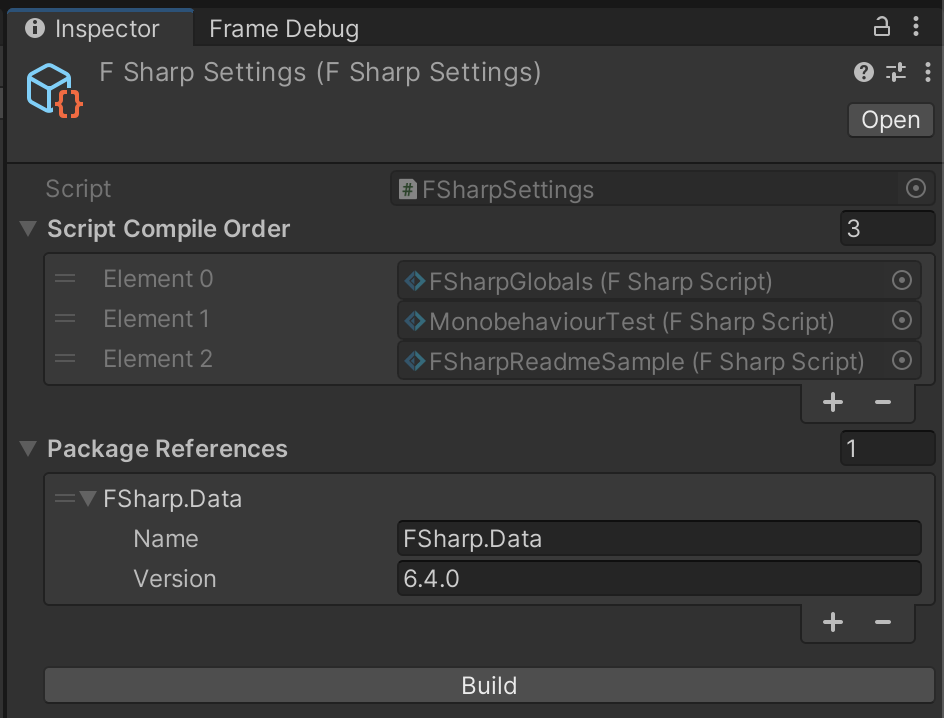
Install via UPM
Add to Unity Package Manager using this URL
https://www.pkglnk.dev/fsharp.git README Markdown
Copy this to your project's README.md
Style
Preview 
## Installation
Add **F#** to your Unity project via Package Manager:
1. Open **Window > Package Manager**
2. Click **+** > **Add package from git URL**
3. Enter:
```
https://www.pkglnk.dev/fsharp.git
```
[](https://www.pkglnk.dev/pkg/fsharp)README
F# for Unity

Experimental support for F# scripting in Unity: create F# scripts with the .fs file extension and they'll be built automatically using the .NET SDK.
Features
- Automatically installs the .NET SDK locally inside your
Libraryfolder - Automatically compiles F# scripts (
.fsfiles) to a DLL usable by Unity- The DLL and its dependencies are generated at
Assets/FSharpOutput. Consider ignoring this folder in your VCS (e.g.: adding to.gitignorefile in Git repos). - The DLL references the same DLLs as
Assembly-CSharpdoes. - Scripts inside
Editorfolders are only available in the Unity editor
- The DLL and its dependencies are generated at
- Supports defining script compilation order in the
Assets/Editor/FSharpSettingsasset - Supports defining package references in the
Assets/Editor/FSharpSettingsasset - Uses the same scripting symbols as C#, e.g.
UNITY_EDITOR,UNITY_STANDALONE,DEVELOPMENT_BUILD, etc... MonoBehaviour/ScriptableObjectclass names do not need to have the same name as their source files. You can also declare several of them in a single file.- The F# project is added to the solution file generated by Unity, so that Intellisense works in IDEs (tested on Visual Studio Code with Ionide extension)
How to install
Either:
- Use the openupm registry and install this package using the openupm-cli:
openupm add com.gilzoide.fsharp - Install using the Unity Package Manager with the following URL:
https://github.com/gilzoide/unity-fsharp.git#1.0.0-preview5 - Clone this repository or download a snapshot of it directly inside your project's
AssetsorPackagesfolder.
Creating scripts in F#
// 1. Add a namespace to your file
namespace MyFSharpNamespace

// 2. Import the UnityEngine and other namespaces as necessary
open UnityEngine

// 3. Create classes that inherit from MonoBehaviour, as usual
type MyFSharpComponent() =
  inherit MonoBehaviour()

  // Use mutable serialized fields to edit them in the Inspector
  [<SerializeField>]
  let mutable serializedFloat = 5f

  [<SerializeField>]
  let mutable prefab: GameObject = null

  [<SerializeField>]
  let mutable intArray: array<int> = [||]

  // In F#, lists are immutable by default and not serialized by Unity
  // Use ResizeArray (a.k.a. System.Collections.Generic.List) to serialize lists
  [<SerializeField>]
  let mutable intList = new ResizeArray<int>()

  // Declare member functions (a.k.a. methods)
  member this.Start() =
    // In F#, we mutate fields with `<-` instead of `=`
    serializedFloat <- 10f

    // In F#, use `isNull` and `isNotNull` to check for null Objects
    if isNotNull prefab then
      Object.Instantiate(prefab, this.transform) |> ignore
F# Settings asset
The asset Assets/Editor/FSharpSettings.asset is created automatically and contains the following settings:
Script Compile Order: this list contains all F# script assets that will be compiled. Freely reorder the scripts to ensure the correct compilation order in the F# project. Tip: keepFSharpGlobals.fsfirst.Package References: add NuGet package references to the F# project. The package DLLs will be automatically copied to theAssets/FSharpOutputdirectory by the build.
No comments yet. Be the first!