EditorAudioUtils
EditorAudioUtils extends Unity's editor audio capabilities with customizable notification sounds and full control over audio playback. Configure your own notification sounds through Project Settings, play audio clips in the editor without AudioSource components, and manage playback with a simple API. Supports Unity 2019.1 and later with per-user EditorPrefs overrides for flexible team workflows.
com.jd.editoraudioutils 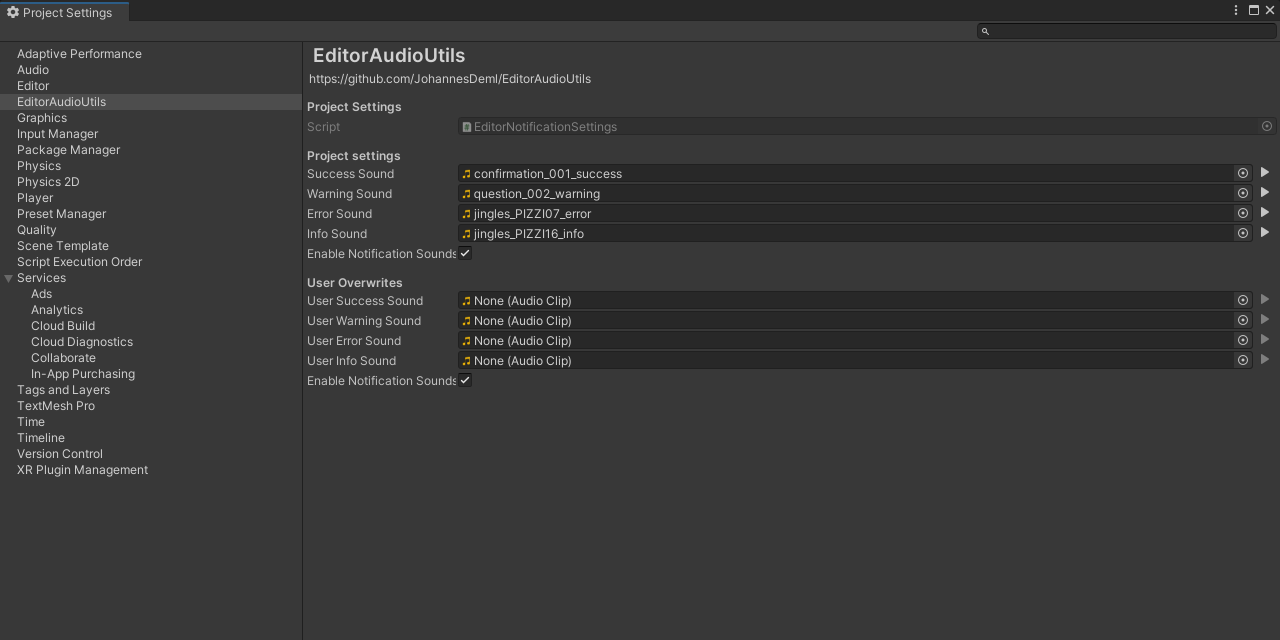
Install via UPM
Add to Unity Package Manager using this URL
https://www.pkglnk.dev/editoraudioutils.git README Markdown
Copy this to your project's README.md
Style
Preview 
## Installation
Add **EditorAudioUtils** to your Unity project via Package Manager:
1. Open **Window > Package Manager**
2. Click **+** > **Add package from git URL**
3. Enter:
```
https://www.pkglnk.dev/editoraudioutils.git
```
[](https://www.pkglnk.dev/pkg/editoraudioutils)README
EditorAudioUtils
Like EditorApplication.Beep(), but with configurable sounds



Installation
Install the package with OpenUPM
$ openupm add com.jd.editoraudioutils
or download the Latest Unity Packages
Features
- Set your own notification sounds through Project Settings -> EditorAudioUtils
- Play custom notification sounds through a simple API
- Play, Pause, Resume and stop any AudioClip in the editor without the need of an AudioSource
- Handle different internal Unity API from Unity 2019 onwards
- Disable or overwrite notification sounds through EditorPrefs. This way each user can decide if and what notification settings they want, while the project itself contains the default settings.
API
Play a predefined notification sound:
// This is the simplest call to play a notification
EditorAudioUtility.PlayNotificationSound(EditorNotificationSound type);
// Delayed might be necessary if the sound should be played after a resource intense task
EditorAudioUtility.PlayNotificationSoundDelayed(EditorNotificationSound type, float secondsDelay);
Access other internal AudioUtil methods (EditorAudioUtility):
// Play clip
EditorAudioUtility.PlayPreviewClip(AudioClip audioClip);
EditorAudioUtility.PlayPreviewClip(AudioClip audioClip, int startSample, bool loop);

// For Unity 2020+ the input will be ignored and applied to all clips
// You can use EditorAudioUtility.LastPlayedPreviewClip to get the last clip
EditorAudioUtility.PausePreviewClip(AudioClip audioClip);
EditorAudioUtility.ResumePreviewClip(AudioClip audioClip);
EditorAudioUtility.StopPreviewClip(AudioClip audioClip);

// Stop all clips
EditorAudioUtility.StopAllPreviewClips();
No comments yet. Be the first!