Command
A powerful Command Line Processor and log viewer for Unity. It can be run in the editor or in a built out player for any platform, allowing you to see your log and callstacks in you final product, without having to search for unity log files. Usage documentation :
com.phantombit.command 
Install via UPM
Add to Unity Package Manager using this URL
https://www.pkglnk.dev/command.git README Markdown
Copy this to your project's README.md

## Installation
Add **Command** to your Unity project via Package Manager:
1. Open **Window > Package Manager**
2. Click **+** > **Add package from git URL**
3. Enter:
```
https://www.pkglnk.dev/command.git
```
[](https://www.pkglnk.dev/pkg/command)README
.Command
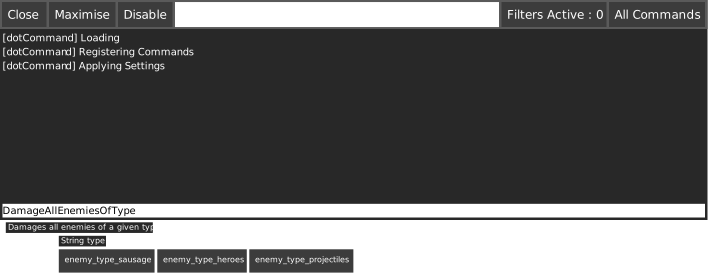
A powerful runtime command console and in-game inspector for Unity. It works across all platforms and brings advanced debugging and tooling features directly into your live game builds.
Key Features
In-Game Log Viewer
View and search your Unity logs while the game is running, without digging into log files — works in Editor and Player builds.Runtime GameObject Inspector
Explore active GameObjects and their components, fields, and properties live on any platform — including mobile and console.Smart Commands & Auto-Complete
Annotate C# methods and properties with attributes to generate interactive console buttons. Supports autocomplete, nested paths, and parameterized calls.Email Logs from Device
Instantly export and email logs or callstacks from any platform — perfect for remote testing and QA workflows.
Getting Started
Install via UPM
- Add a new entry to your manifests.json
"com.phantombit.command": "https://github.com/ArtOfSettling/UnityInGameConsoleUPM.git#v0.1.0" - Drag the
Packages/com.phantombit.command/Runtime/Platform/Prefabs/DebugConsoleLoader.prefabinto any scene and you are done!
Install via unity package
- Grab the latest release from the GitHub Releases Page.
- Import the unity package into your unity project.
- Drag the
WellFired/WellFired.Command/Platform/Prefabs/DebugConsoleLoader.prefabinto any scene and you are done!
Next Steps
Read more on how to use .command
Dev Environment Setup
If you're contributing or building the Unity package yourself, follow these steps:
Prerequisites
- Unity (2022.3 LTS or newer recommended)
- Node.js (we recommend using nvm to install)
nvm install --lts
nvm use --lts
Install Build Tools
Install Jake (task runner) and CoffeeScript compiler:
npm install -g jake coffeescript
Note: Global install is required for CLI commands like
jaketo work in terminal.
Verify Setup
Run the following to list available tasks:
jake -T
Build the Unity Package
- Initialize Submodules
This pulls down the source for the package if it's managed via a Git submodule:
jake repo:update-submodules -c
- Build the
.unitypackage
jake unity:export-package -c
This will print a message like:
[INFO] Using unity path: /Applications/Unity/Hub/Editor/...
The built .unitypackage will be located under the unity/ directory.
Using the Unity Project
You can also just open the Unity project located at /unity/ in the Unity Hub to explore or test the package in action.
Input System Compatibility
.Command supports toggling the in-game console with the backquote key (`). If you're using Unity's new Input System, make sure to:
Documentation
Full usage docs and API reference are available at:
📖 https://dotcommand-documentation.readthedocs.io/en/latest/
No comments yet. Be the first!