CameraImageCapture

Capture camera image and save to a specified path.
net.suisuishou.cameraimagecapture Install via UPM
Add to Unity Package Manager using this URL
https://www.pkglnk.dev/cameraimagecapture.git README Markdown
Copy this to your project's README.md

## Installation
Add **CameraImageCapture** to your Unity project via Package Manager:
1. Open **Window > Package Manager**
2. Click **+** > **Add package from git URL**
3. Enter:
```
https://www.pkglnk.dev/cameraimagecapture.git
```
[](https://www.pkglnk.dev/pkg/cameraimagecapture)README
Unity Camera Image Capture


Capture camera image and save to a specified path.
Installation instructions
Unity package manager(Git)
- Go to Package Manager window via
Window/Package Manager - Click the add
 button in the status bar
 - Select Add package from git URL from the add menu
- Fill the git URL with https://github.com/blightue/UnityCameraImageCapture.git and click Add
Unity package manager(Local)
- Download and unzip the source code to your disk
- Go to Package Manager window via
Window/Package Manager - Click the add button in the status bar
- Select Add package from disk from the add menu
- Select the package.json file in the unzipped folder
Quick Start
Version 0.5.0 Update:
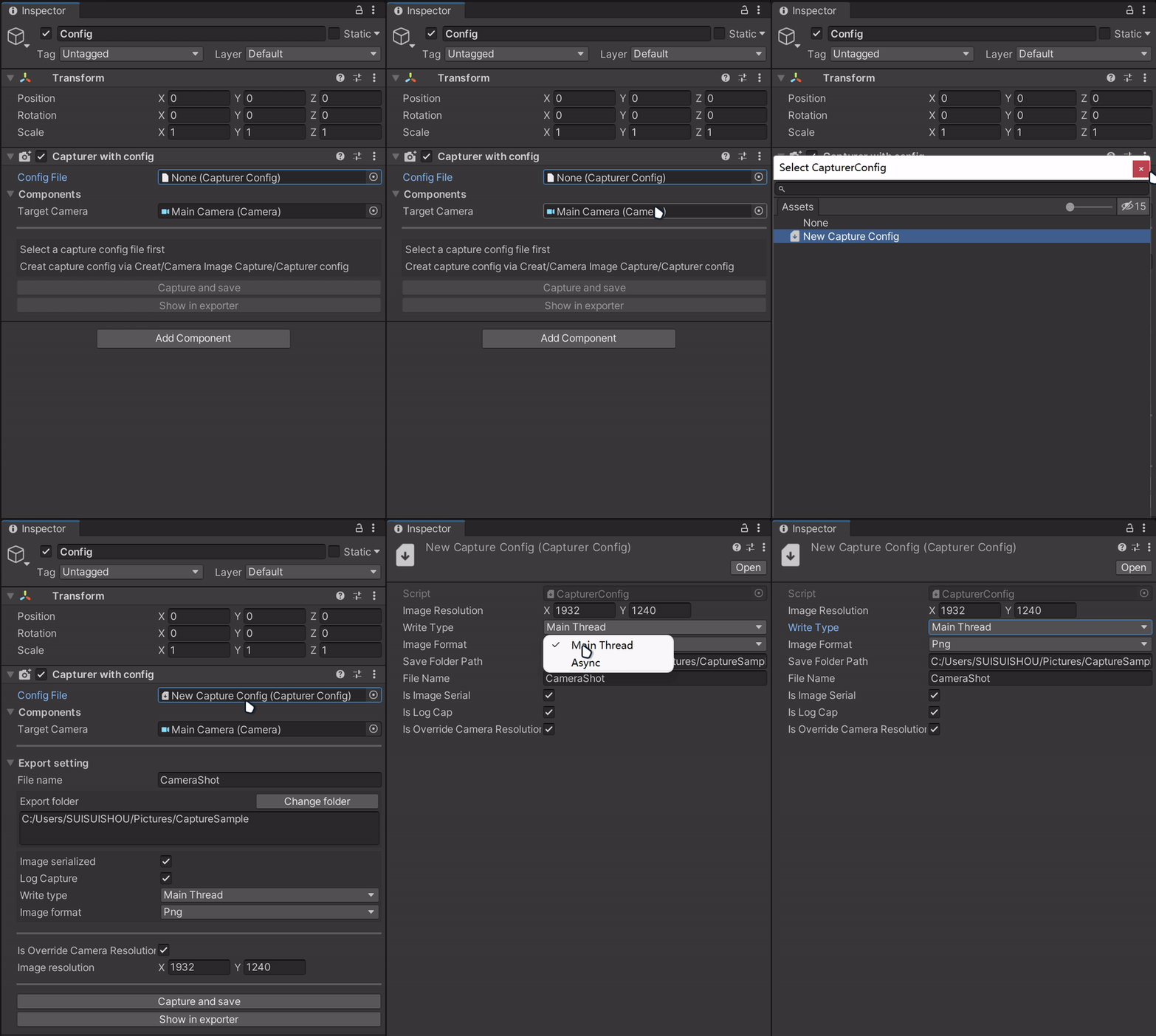
Recommend use component Capture with config
Create a config asset by click the plus button in the Project window and follow Camera Image Capture/Capturer config
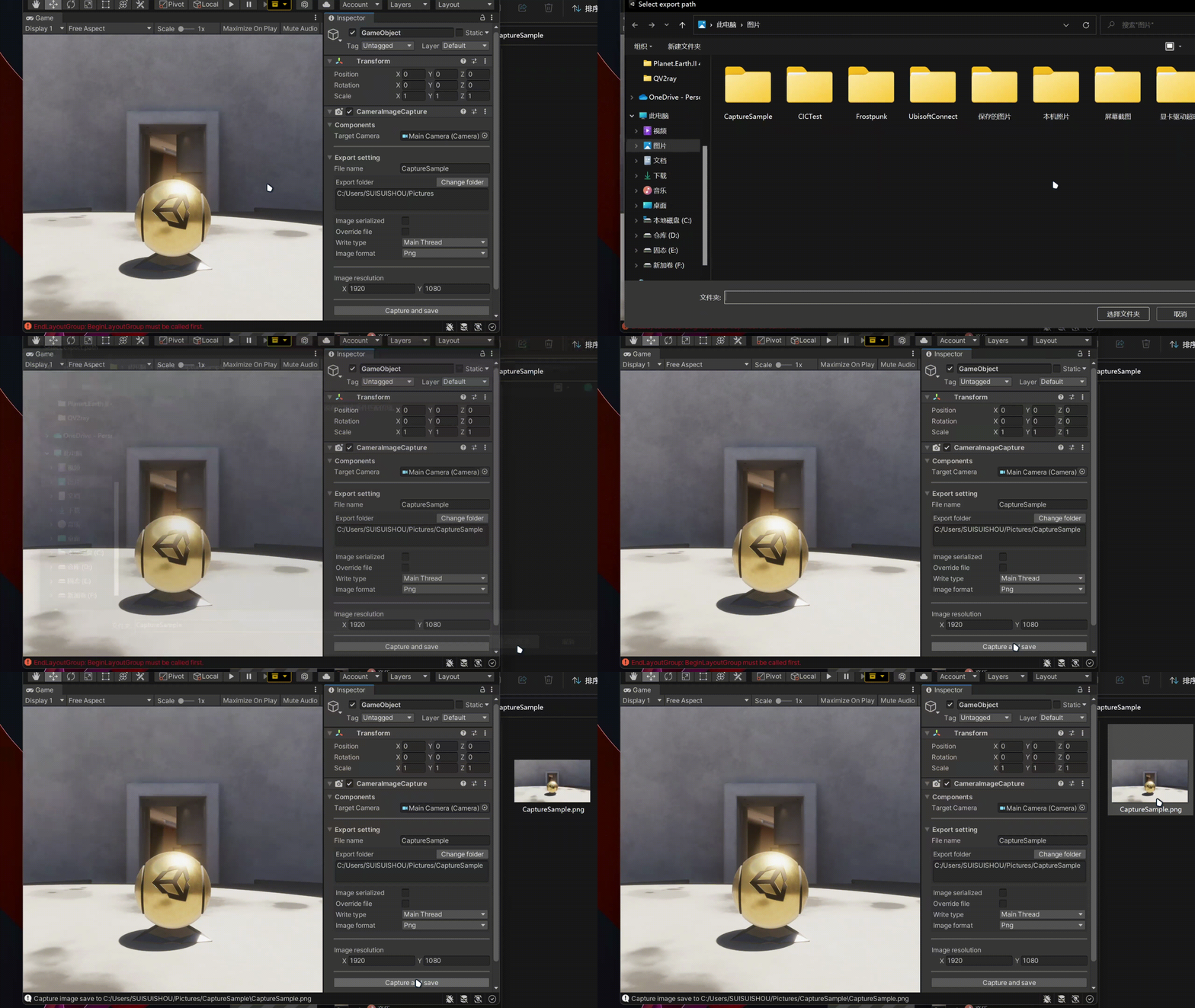
Editor
Component
Add component
CameraImageCaptureto aGameObjectviaCamera Image Capture/CameraImageCaptureConfig
CameraImageCapturevalue in the Inspector.Target Camera : Target camera for capture
File Name : The name of captured image file
Export folder : The folder for the captured image file.
Image serialized : Is the image file name serialized. If set to true, the file name will be [fileName]-0.jpg [fileName]-1.jpg ...
Is Log Capture : Is log capture information when image captured
Write type :
- Main Thread: Write the file in main thread. It will block the main thread
- Async: Write the file asynchronous. Caution use this type in MonoBehavior.Update() function
Image format : PNG JPG TGA
Is Override Camera Resolution : False to set your own image resolution. Image will follow target camera FOV Axis
Click Capture and save button for capturing
EditorWindow
Open
Camera Image Capturewindow viaTools/Camera Image Capture/CapturerAdd and Config
CaptureConfigvalue in the Inspector.Click Capture and save button for capturing
Runtime
Static Singleton
using SuiSuiShou.CIC.Core;
using UnityEngine;

public class SampleScript : MonoBehaviour
{
    void Start()
    {
        Photographer.IsImageSerial = false;
        Photographer.ImageResolution = new Vector2Int(1920, 1080);
        Photographer.CaptureAndSaveImage();
    }
}
Component
Assign the
CameraImageCapturecomponent in your codeCall
CameraImageCapture.CaptureAndSaveImage()CameraImageCapturefields can changed during runtimeCode Sample
using SuiSuiShou.CIC.Core;
using UnityEngine;

public class SampleScript : MonoBehaviour
{
    public CameraImageCapture cic;

    private void Start()
    {
        cic.FileName = "Sample";
        cic.ImageResolution = new Vector2Int(1920, 1080);
        cic.CaptureAndSaveImage();
    }
}
Comments
No comments yet. Be the first!
Sign in to join the conversation
Sign In