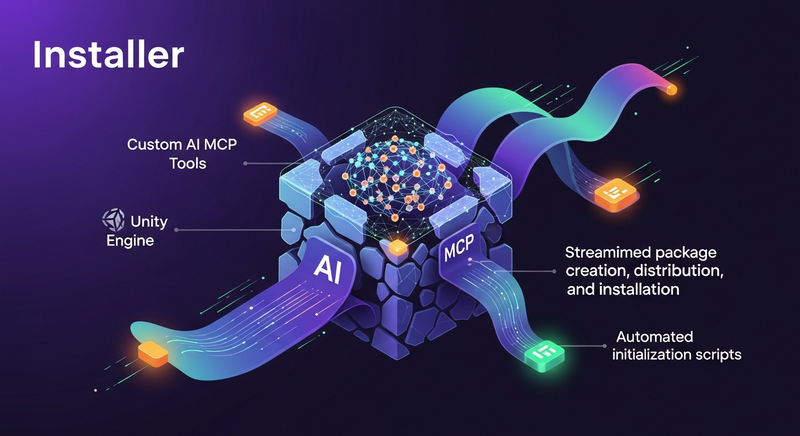

Create custom AI MCP Tools for Unity Engine in minutes using this template project. Streamlines package creation, distribution, and installation with automated initialization scripts, support for both Editor and Runtime tools, and seamless integration with AI Game Developer (Unity-MCP) for enhanced AI-assisted development workflows.
Unity Project
Built with Unity 2022.3.62f3 · download the source from GitHub
README
Rendered from GitHubUnity AI Tools Template

Template for AI MCP Tools for AI Game Developer (Unity-MCP). Use this template to create your custom MCP tools for Unity Engine in 30 minutes. Read more about custom MCP tools here.
This template repository is designed to be easily updated into a real Unity package. Please follow the instruction bellow, it will help you to go through the entire process of package creation, distribution and installing.
Steps to make your package
1️⃣ Click the button - create repository

2️⃣ Clone your new repository
3️⃣ Initialize Project
Use the initialization script to rename the package and replace all placeholders.
./commands/init.ps1 -PackageId "com.company.package" -PackageName "My Package"
This script will:
- Rename directories and files.
- Replace
YOUR_PACKAGE_ID,YOUR_PACKAGE_NAME, etc. in all files and folder names.
4️⃣ Update package.json
Open Unity-Package/Assets/root/package.json and update:
descriptionauthorkeywordsunity(minimum supported Unity version)
- Generate Meta Files
To ensure all Unity meta files are correctly generated:
- Open Unity Hub.
- Add the
Installerfolder as a project. - Add the
Unity-Packagefolder as a project. - Open both projects in Unity Editor. This will generate the necessary
.metafiles.
5️⃣ Generate Meta Files
Using script
Open Unity project to generate .meta files.
On Mac and Linux:
./commands/open-all-projects-unix.sh
On Windows:
./commands/open-all-projects-windows.ps1
OR Manually
You may open the projects manually to achieve the same result.
- Open Unity Hub.
- Add the
Installerfolder as a project. - Add the
Unity-Packagefolder as a project. - Open both projects in Unity Editor. This will generate the necessary
.metafiles.
6️⃣ Add MCP Tools
Decide what type of MCP tool you need:
- MCP tool for Unity Editor
- ✔️ Works in Unity Editor (Edit Mode)
- ✔️ Works in Unity Editor (Play Mode)
- ✔️ Has access to Editor API
- ❌ Available in a game build
- MCP tool for Unity Runtime
- ✔️ Works in Unity Editor (Edit Mode)
- ✔️ Works in Unity Editor (Play Mode)
- ❌ Has access to Editor API
- ✔️ Available in a game build
Based on your choice create script at the location
- Editor:
Unity-Package/Assets/root/Editor - Runtime:
Unity-Package/Assets/root/Runtime
Read detailed instructions about custom tool development here.
[McpPluginToolType]
public static class MyCustomTool
{
    [McpPluginTool("my-custom-feature", Title = "Do my custom feature")]
    [Description("Put here the tool description for LLM.")]
    public static Task<bool> DoTurn(
        [Description("Add description to the input property, help LLM better understand it.)]
        int figureId,
        [Description("Add description to the input property, help LLM better understand it.)]
        Vector2Int position)
    {
        // do any logic in background thread here
        return MainThread.Instance.RunAsync(() =>
        {
            // do any logic in main thread here

            return true;
        });
    }
}
Optional steps
1. Version Management
To update the package version across all files (package.json, Installer.cs, etc.), use the bump version script:
.\commands\bump-version.ps1 -NewVersion "1.0.1"
2. Setup CI/CD
To enable automatic testing and deployment:
Configure GitHub Secrets Go to
Settings>Secrets and variables>Actions>New repository secretand add:UNITY_EMAIL: Your Unity account email.UNITY_PASSWORD: Your Unity account password.UNITY_LICENSE: Content of yourUnity_lic.ulffile.- Windows:
C:/ProgramData/Unity/Unity_lic.ulf - Mac:
/Library/Application Support/Unity/Unity_lic.ulf - Linux:
~/.local/share/unity3d/Unity/Unity_lic.ulf
- Windows:
Enable Workflows Rename the sample workflow files to enable them:
.github/workflows/release.yml-sample➡️.github/workflows/release.yml.github/workflows/test_pull_request.yml-sample➡️.github/workflows/test_pull_request.yml
Update Unity Version Open both
.ymlfiles and update theUNITY_VERSION(or similar variable) to match your project's Unity Editor version.Automatic Deployment The release workflow triggers automatically when you push to the
mainbranch with an incremented version inpackage.json.
3. Add files into Unity-Package/Assets/root folder
Unity guidelines about organizing files into the package root directory
  <root>
  ├── package.json
  ├── README.md
  ├── CHANGELOG.md
  ├── LICENSE.md
  ├── Third Party Notices.md
  ├── Editor
  │   ├── [company-name].[package-name].Editor.asmdef
  │   └── EditorExample.cs
  ├── Runtime
  │   ├── [company-name].[package-name].asmdef
  │   └── RuntimeExample.cs
  ├── Tests
  │   ├── Editor
  │   │   ├── [company-name].[package-name].Editor.Tests.asmdef
  │   │   └── EditorExampleTest.cs
  │   └── Runtime
  │        ├── [company-name].[package-name].Tests.asmdef
  │        └── RuntimeExampleTest.cs
  ├── Samples~
  │        ├── SampleFolder1
  │        ├── SampleFolder2
  │        └── ...
  └── Documentation~
       └── [package-name].md
Final polishing
- Update the
README.mdfile (this file) with information about your package. - Copy the updated
README.mdtoAssets/rootas well.
⚠️ Everything outside of the
rootfolder won't be added to your package. But still could be used for testing or showcasing your package at your repository.
1. Deploy to any registry you like
- Deploy to OpenUPM (recommended)
- Deploy using GitHub
- Deploy to npmjs.com
2. Install your package into Unity Project
When your package is distributed, you can install it into any Unity project.
Don't install into the same Unity project, please use another one.
Open a command line at the root of Unity project (the folder which contains
Assets)Execute the command (for
OpenUPMhosted package)openupm add YOUR_PACKAGE_NAME
Final view in Unity Package Manager

Versions 0
No versions tracked yet.
Dependencies 19
Changelog 0 releases
No changelog entries yet. Run the admin Changelog & Version Scanner to pull from the repository's CHANGELOG.md.
Comments
No comments yet. Be the first!
Sign in to join the conversation
Sign In