Game Core Time Channels

Lightweight and modular time control system for Unity.
Unity Project
Download the source from GitHub
Dependencies (43)
README
Time Channels for Unity


A lightweight and highly controllable time channel system for Unity — designed to replace Unity's global Time.timeScale with modular, per-system control.
Why Not Use Time.timeScale?
Unity's built-in Time.timeScale affects the entire game globally, which limits your ability to create nuanced time effects. For example, you can't easily:
- Pause UI while gameplay continues
- Slow down enemies without affecting player controls
- Run multiple independent timelines in parallel
Time Channels solves these problems by allowing each gameplay system to operate on its own independently scaled timeline.
✨ Features
- Per-System Time Scaling: Assign unique time scales to players, enemies, weather, UI, and more
- Modular Architecture: Clean separation of channel creation, management, and usage
- String-Based Channel Naming: Easily register and retrieve custom time channels by name
- Pause/Resume Per Channel: Control specific systems without impacting the entire game
- Event System: React to time scale changes with
OnTimeScaleChangedcallbacks - Flexible Signal System: Use
TimeChannelSignalfor complex, dynamic time effects
📦 Installation
Via Git URL
- Open Window > Package Manager
- Click the + button and select "Add package from git URL"
- Enter:
https://github.com/BcoffeeDev/game-core-time-channels.git?path=/Packages/com.bcoffee-dev.time-channels - Click Add
Requirements
- Unity 2019.4 or newer
- No additional dependencies
🚀 Quick Start
1. Register a time channel
TimeChannelManager.Register("Player", SupportedTime.DeltaTime);
2. Access time in your Update loop
float dt = TimeChannelManager.Get("Player").DeltaTime;
transform.Translate(Vector3.forward * speed * dt);
3. Adjust time scale at runtime
TimeChannelManager.Get("Player").TimeScale = 0.5f; // Slow motion effect
📖 Usage Examples
Create a custom time channel without the manager
var customChannel = TimeChannelFactory.Create(SupportedTime.FixedDeltaTime);
customChannel.TimeScale = 0.8f;
float dt = customChannel.DeltaTime;
Pause and resume a specific channel
var enemy = TimeChannelManager.Register("Enemy", SupportedTime.DeltaTime);

// Pause: set scale to 0 (remember previous scale if you need to restore it)
float prevScale = enemy.TimeScale;
enemy.TimeScale = 0f;

// Resume: restore previous scale
enemy.TimeScale = prevScale;
Note:
TimeChannelhas no built-inPause()/Resume()methods. Pausing is done by settingTimeScaleto0f, and resuming by restoring a non-zero scale.
Use TimeChannelSignal for advanced effects
public class MovingCube : MonoBehaviour
{
    [SerializeField] private TimeChannelSignal signal;

    void Update()
    {
        if (signal.Channel != null)
        {
            float dt = signal.Channel.DeltaTime;
            // Use dt for movement, animation, etc.
        }
    }
}
React to time scale changes
var channel = TimeChannelManager.Get("Player");
channel.OnTimeScaleChanged += (newScale) => {
    Debug.Log($"Player time scale changed to: {newScale}");
    // Update UI, play effects, etc.
};
📚 API Overview
| Component | Description |
|---|---|
TimeChannelManager |
Register, retrieve, and manage named time channels |
TimeChannel |
Core time channel with DeltaTime, TimeScale, and events |
TimeChannelFactory |
Create custom time channels independent of the manager |
TimeChannelSignal |
MonoBehaviour component for advanced time control |
SupportedTime |
Enum defining Unity's built-in time types |
Core Methods
// TimeChannelManager
TimeChannel Register(string name, SupportedTime type, float defaultTimeScale = 1f)
TimeChannel Get(string name)
bool Has(string name)
void Unregister(string name)
void Clear()

// TimeChannel
float DeltaTime { get; }
float TimeScale { get; set; }
SupportedTime Type { get; }
event Action<float> OnTimeScaleChanged
🧪 Samples
The package includes two comprehensive samples:
- BasicExample: Demonstrates fundamental usage of time channels
- TimeControlExample: Shows
TimeChannelSignalwith trigger-based time effects
To import samples:
- Open Window > Package Manager
- Select
Time Channels - Click the Samples tab
- Import the desired sample
🎥 Demo
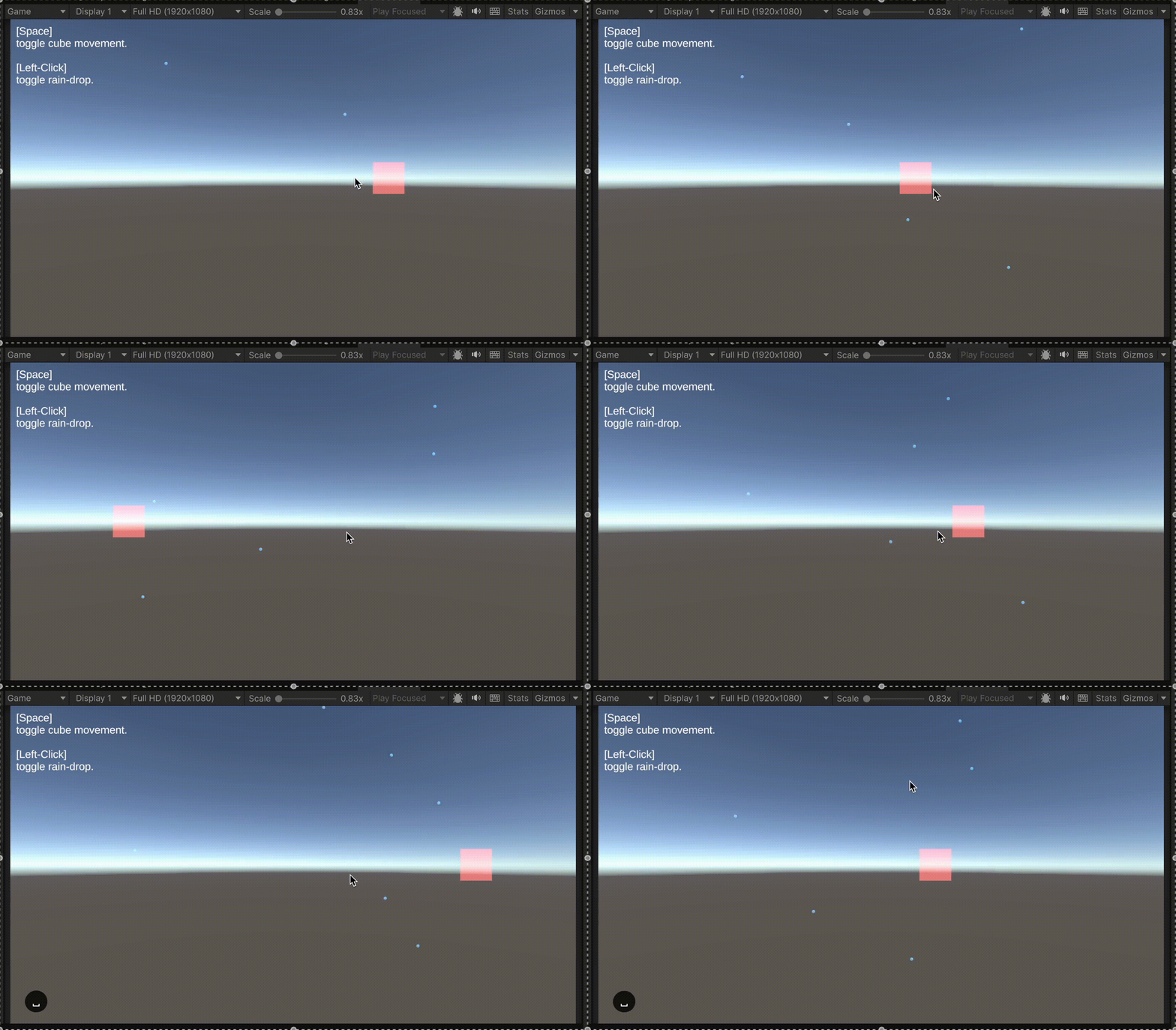 Basic time channel control with pause/resume functionality
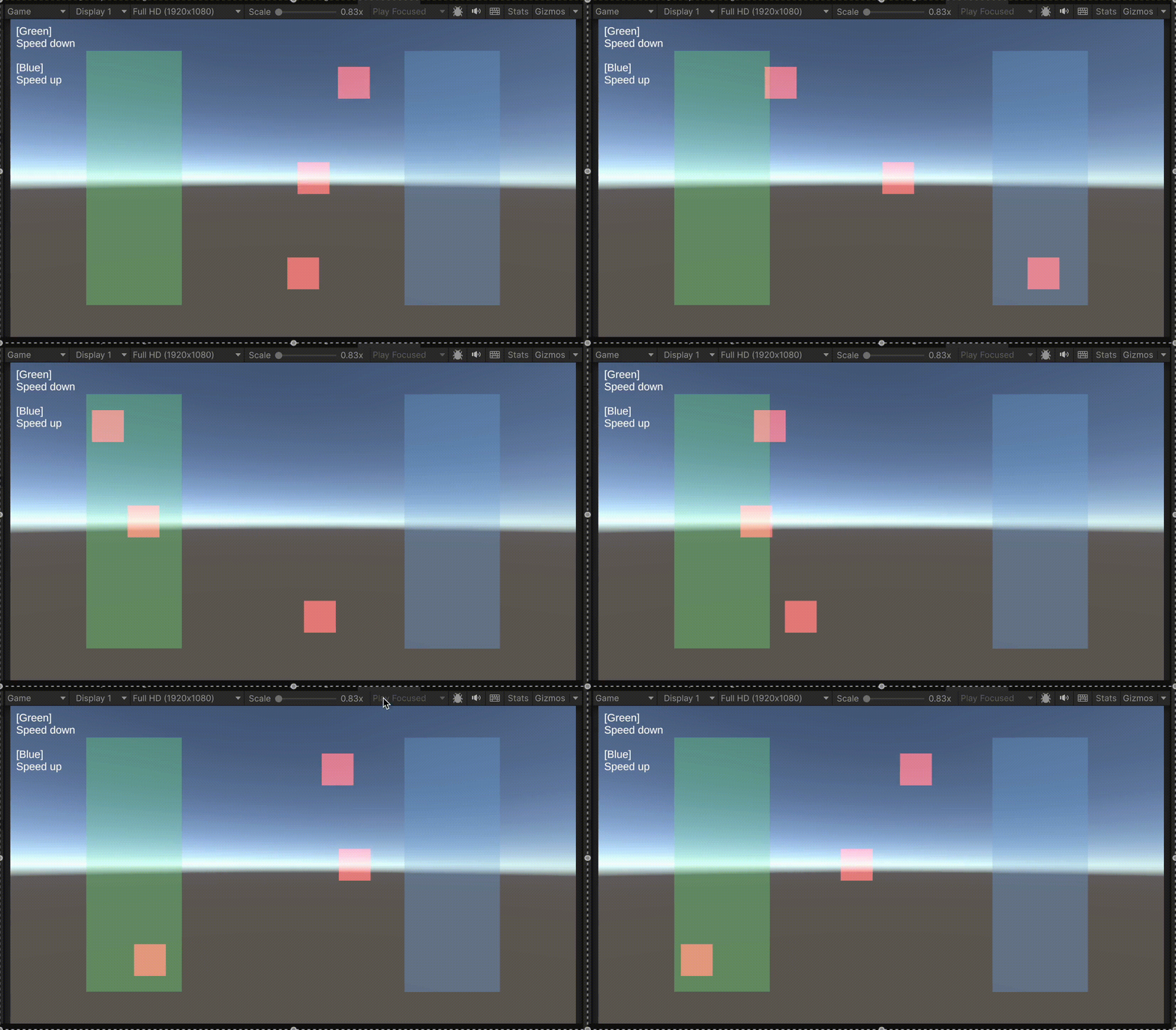
Advanced time effects using TimeChannelSignal
⚠️ Best Practices
- Avoid mixing with global Time.timeScale - Don't use Unity's global
Time.timeScalealongside this system - Register channels early - Register all channels in
Awake()orStart() - Use descriptive names - Choose meaningful channel names like "Player", "Enemies", "Weather"
- Clean up properly - Call
TimeChannelManager.Unregister()when channels are no longer needed - Handle null references - Always check if channels exist before using them
🔄 Changelog
[1.1.0] - 2025-08-02
- Added
OnTimeScaleChangedevent toTimeChannel - Added
TimeChannelSignalfor flexible time control - Modified
TimeChannelManager.Registerto return existing channels - Renamed
timeScaleparameter todefaultTimeScale
[1.0.0] - 2025-07-06
- Initial release
- Core time channel system
- Manager and factory classes
- Basic sample scenes
🤝 Contributing
Contributions are welcome! Please feel free to submit a Pull Request.
Development Setup
- Fork this repository
- Clone your fork:
git clone https://github.com/your-username/game-core-time-channels.git - Create a feature branch:
git checkout -b feature/amazing-feature - Make your changes and commit:
git commit -m 'Add amazing feature' - Push to the branch:
git push origin feature/amazing-feature - Open a Pull Request
📄 License
MIT License © 2025 Bcoffee
See LICENSE for more details.
🐛 Issues & Support
If you encounter any issues or have questions:
- Check the Issues page
- Create a new issue with detailed information
- Include Unity version, error messages, and reproduction steps
⭐ If this project helps you, please consider giving it a star!
Comments
No comments yet. Be the first!
Sign in to join the conversation
Sign In