

Animate UI Materials enables dynamic material property editing and animation for individual UI components without affecting the source material. Add the GraphicMaterialOverride component to any UI element, select properties to override, and animate them using Unity's standard Animator and AnimationClip workflow. Supports all material properties with a clean editor interface requiring Unity 2021.3 or later.
Unity Project
Built with Unity 2021.3.32f1 · download the source from GitHub
README
Rendered from GitHub
Introduction
Animate UI Materials allows editing and animating materials for a single UI component.
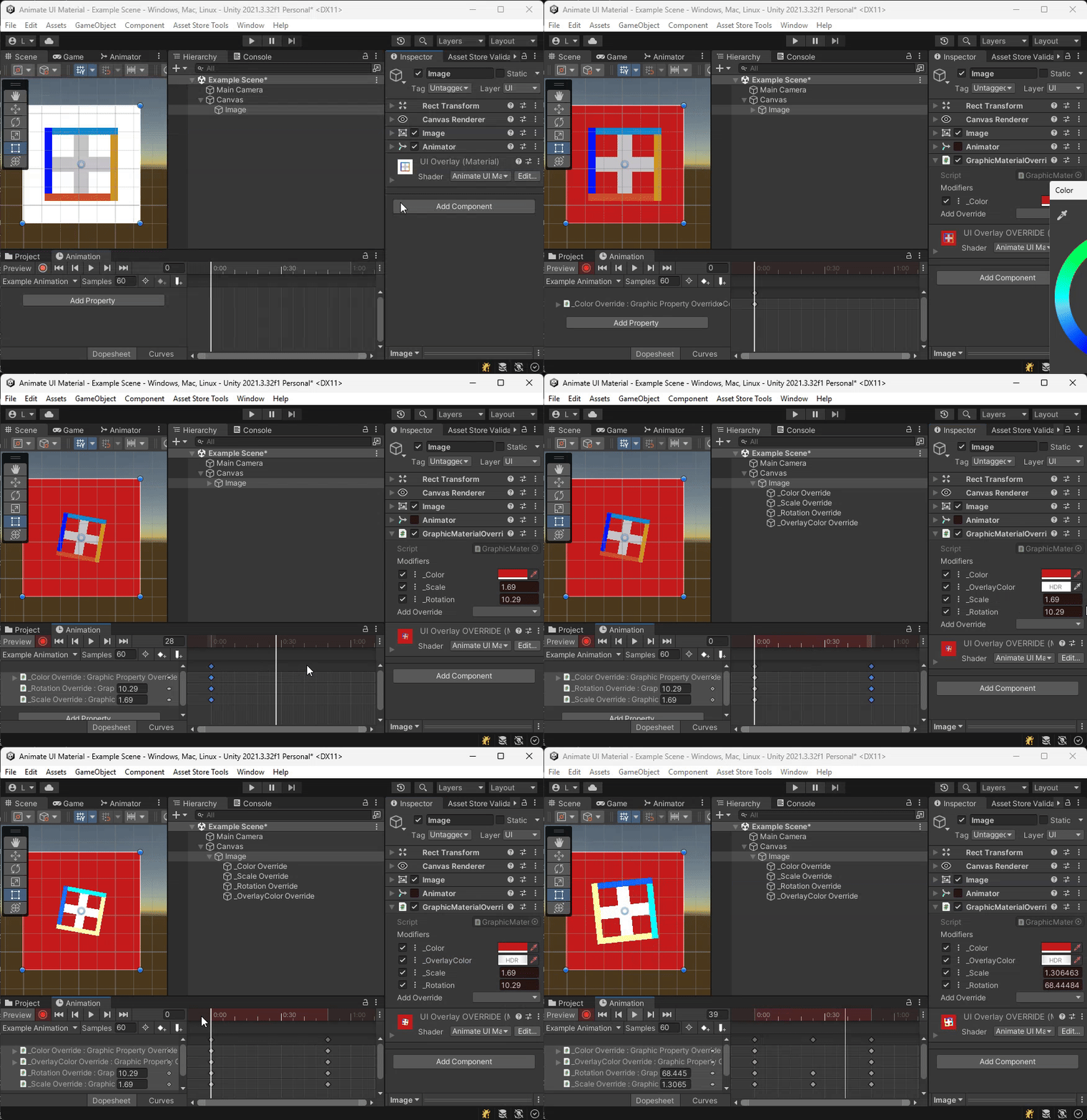
Installation
This package required 2021.3 or later
Install with OpenUPM
openupm add com.lgarczyn.animate-ui-material
Install with the Unity Package Manager
- In the Unity Editor
- Open the Windows Menu
- Open the Package Manager
- Press +
- Add Package from git URL
- Enter
https://github.com/lgarczyn/AnimateUIMaterials.git#upm
Install With Asset Store
Use the Unity Asset Store
Download Directly
Download asset from Releases folder
Setup
Import the package into your project
Simply add the GraphicMaterialOverride component to an UI element, such as an Image with a custom Material
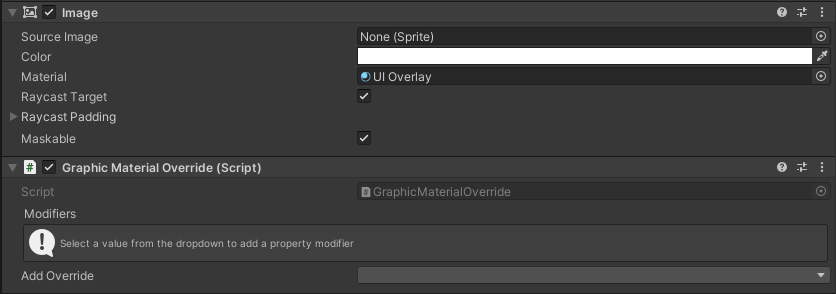
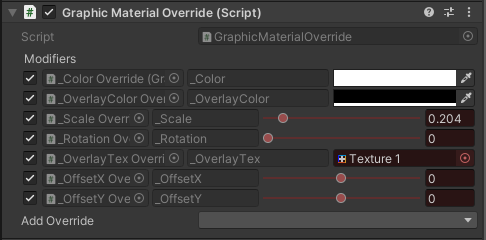
When selecting the dropdown “Add Override”, you will be greeted with every possible property you can animate.
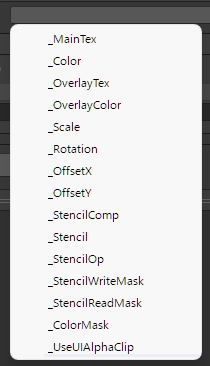
You can ignore those you don’t know, such as the _Stencil properties. They are internal to UI stencil rendering. Simply select “_Color” for example.
Two things will happen:
A new modifier will be listed in the GraphicMaterialOverride component
 You can already edit the color value, and the change will only affect the Image component
A new gameobject will be created, holding a GraphicPropertyOverride component
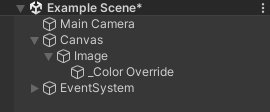
 The value displayed here is the exact same as in the GraphicMaterialComponent. However this value can also be animated.
Animation
To animate the property, add the usual Animator component to the image
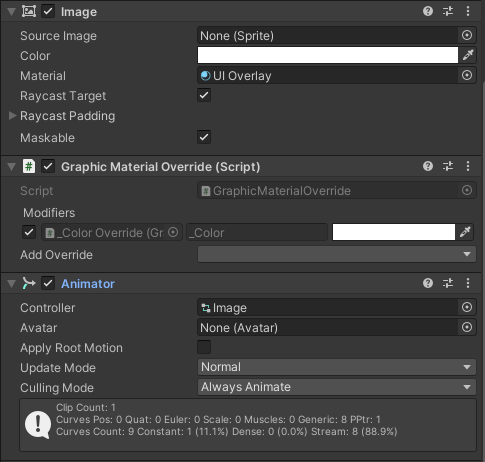
Create a new AnimationClip
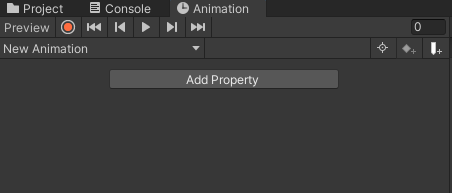
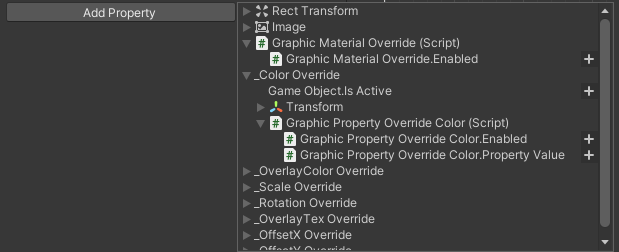
Click Add Property and select _Color Override, then Graphic Property Override Color, then Graphic Property Override Color.Property Value
You can now animate the value like any other !
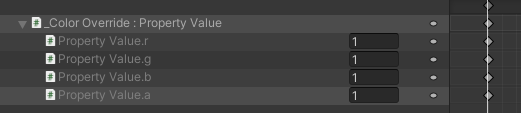
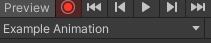
Alternatively, hit the Record button, and simply modify the properties from the GraphicMaterialOverride inspector
Baking
To get the final modified material as a material asset, simply open the context menu of your GraphicMaterialOverride or Graphic and press "Bake Modified Material". A new material variant will be saved alongside the source material.
Sharing across Graphics
To make several UI elements display the same animated material — sharing the work and batching into one draw call — add a GraphicMaterialOverrideMirror to each follower. As long as the followers and the source share the same base Material asset, the Mirror finds and reuses the modified instance automatically. To opt out of sharing, give an element a different material variant.
Both Graphics must be at the same stencil Mask depth (RectMask2D is unaffected). The Mirror's inspector reports its current state.
End Notes
If you encounter a bug or need any help, please contact me at fleeting.being.official@gmail.com
Don’t hesitate to look into the code if you want to know how things work !
Versions 0
No versions tracked yet.
Dependencies 0
No dependencies.
Changelog 0 releases
No changelog entries yet. Run the admin Changelog & Version Scanner to pull from the repository's CHANGELOG.md.
Comments
No comments yet. Be the first!
Sign in to join the conversation
Sign In